Billing & Subscription
Manage your plans and payments with ease and flexibility. Each workspace has its own billing and usage. If you are an agency with multiple clients, give each client their own workspace. This way, you can keep each client’s billing separate and organized.
Manage Plans & Subscriptions.
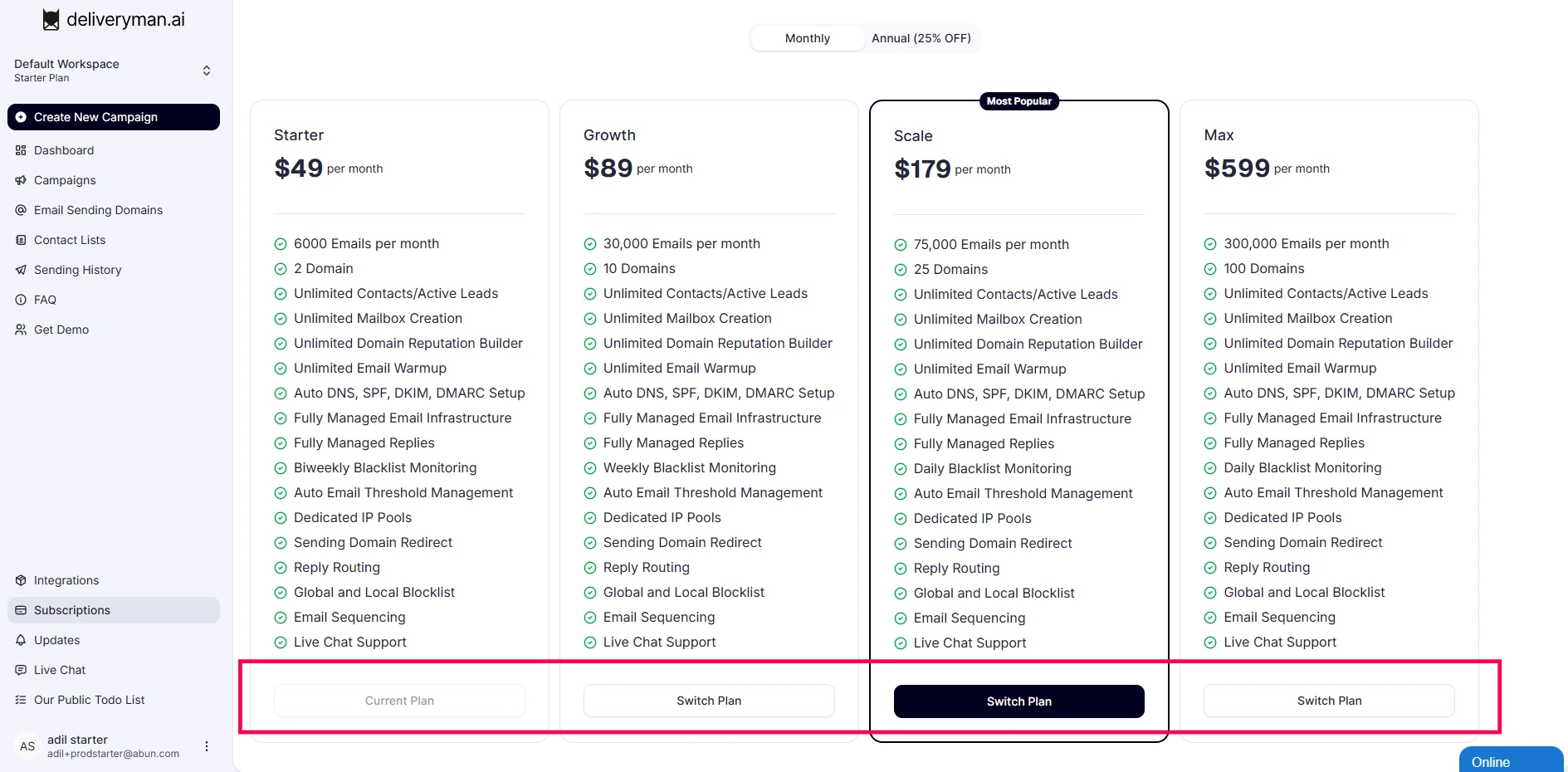
- In your Subscriptions page, you can buy a new plan or switch to a different plan at any time.
- You can upgrade to a higher plan or downgrade to a lower plan whenever you need.
Upgrades & Downgrades
- For upgrades, you will be charged the upgraded subscription amount and receive updated plan limits immediately. Your billing cycle will reset to the present date and time.
- For downgrades, the new plan will take effect at the end of your current billing cycle. Your current subscription will finish & then the downgraded plan will be billed.
Manage Billing
Click your profile name at the bottom-left of the dashboard, then choose Settings and Billing.
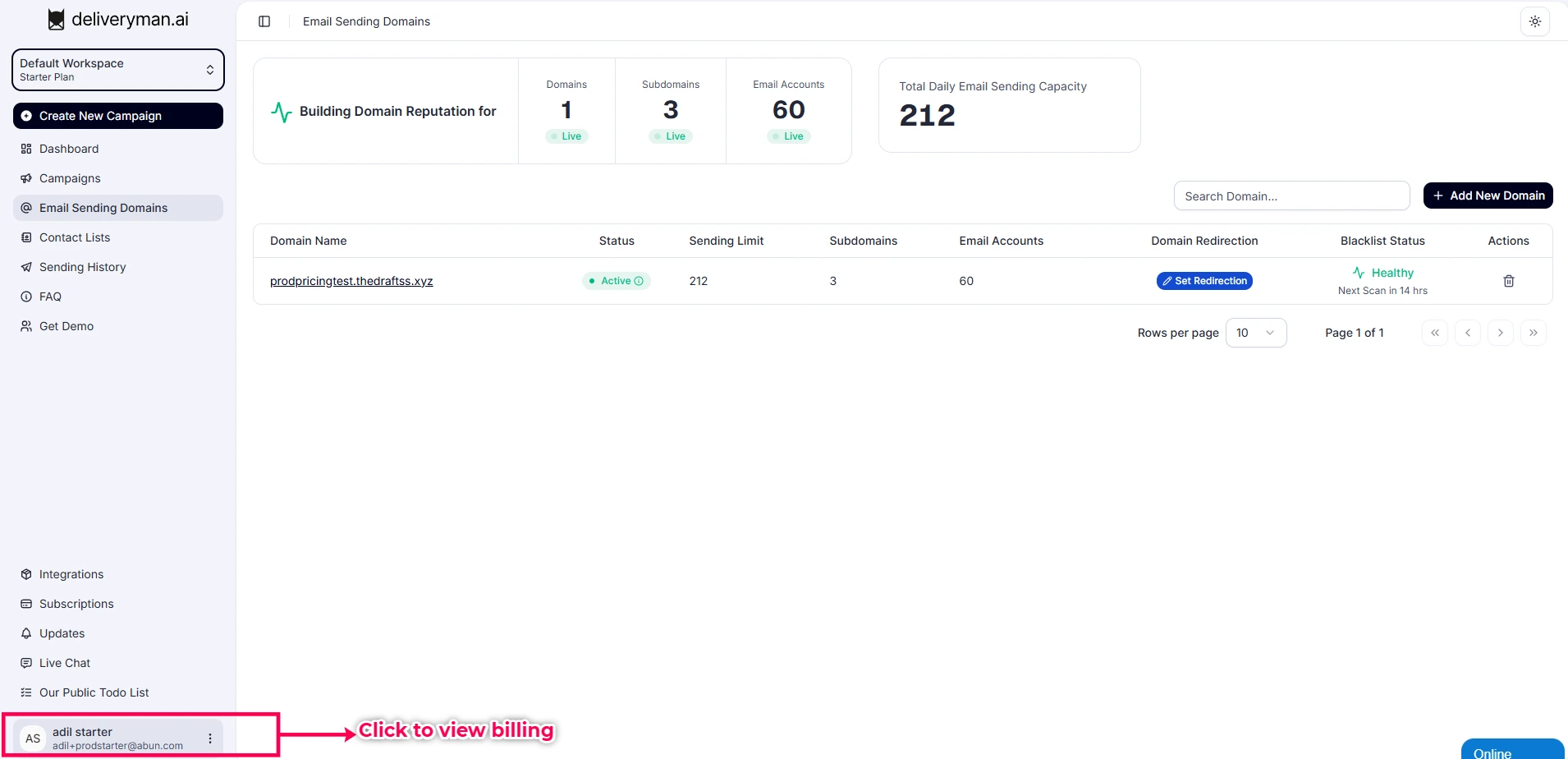
On the Billing page, you can see your current plan, usage, next renewal date, and other billing related details. You can download past invoices from the Billing page at any time.
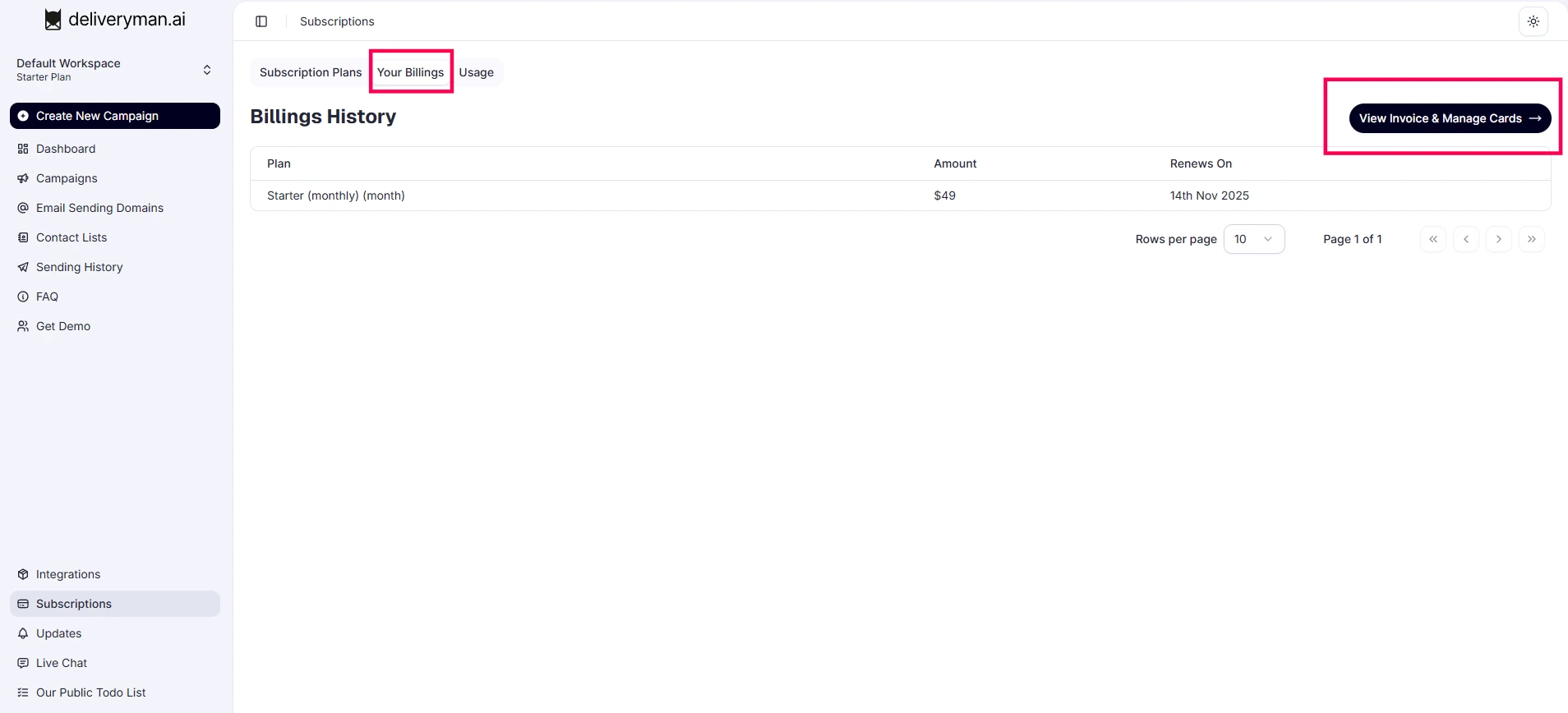
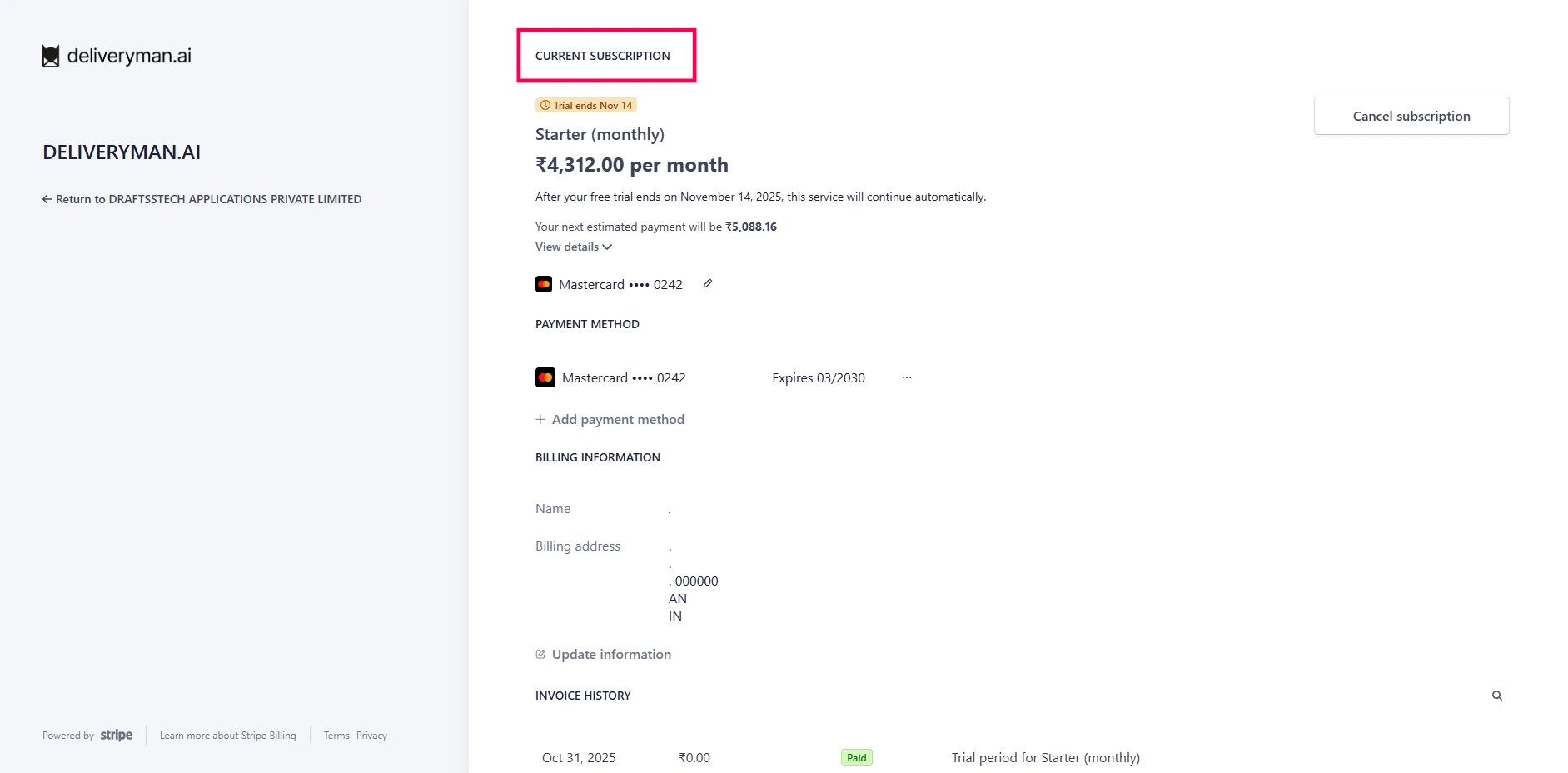
You can also update your payment method (credit card) on this page whenever needed.
If a payment fails or you cancel your subscription, your current email campaigns will be paused and any ongoing email warm-up processes will stop. When your subscription is cancelled, your email-sending domains will become inactive. You must reactivate your plan to resume sending emails. Note: If there is a substantial gap where your domain was inactive, you will be prompted to warmup your domains & mailboxes again on reactivation of your plan before you can start sending email campaigns again.
How do I cancel my subscription or change my plan?
- To cancel your subscription: Go to Subscriptions → Your Billing → View Invoice & Manage Cards. Click "Cancel Plan" and confirm.
- To change your plan: Go to Subscriptions, select the new plan you want, complete the payment steps, and confirm the change.
Billing History, Invoices & Card Management
- You can view all your past payments on the Stripe dashboard linked from the Billing page.
- Use the Stripe dashboard to download any invoice and to manage your saved payment cards.