HubSpot Integration
Deliveryman.ai allows you to import contacts directly from HubSpot. This integration helps you sync your HubSpot contacts or lists into Deliveryman.ai so you can quickly use them in your outreach campaigns.
Steps to import contacts from HubSpot.
Connect HubSpot to Deliveryman.ai
Before importing contacts, make sure your HubSpot account is connected.
- Go to Integrations in the Deliveryman.ai dashboard.
- Select HubSpot from the available integrations.
- Authorize Deliveryman.ai to access your HubSpot account.
- Once connected, Deliveryman.ai will be able to retrieve your HubSpot contacts and lists.
Create a Contact List
- Navigate to Contact Lists in Deliveryman.ai.
- Click Create New Contact List.
- Enter a List Name for your contact list.
- In the Source dropdown, select HubSpot.
Choose Import Option
Deliveryman.ai allows you to import contacts in two ways.
Import All Contacts from HubSpot
Select this option if you want to import all contacts available in your HubSpot account.
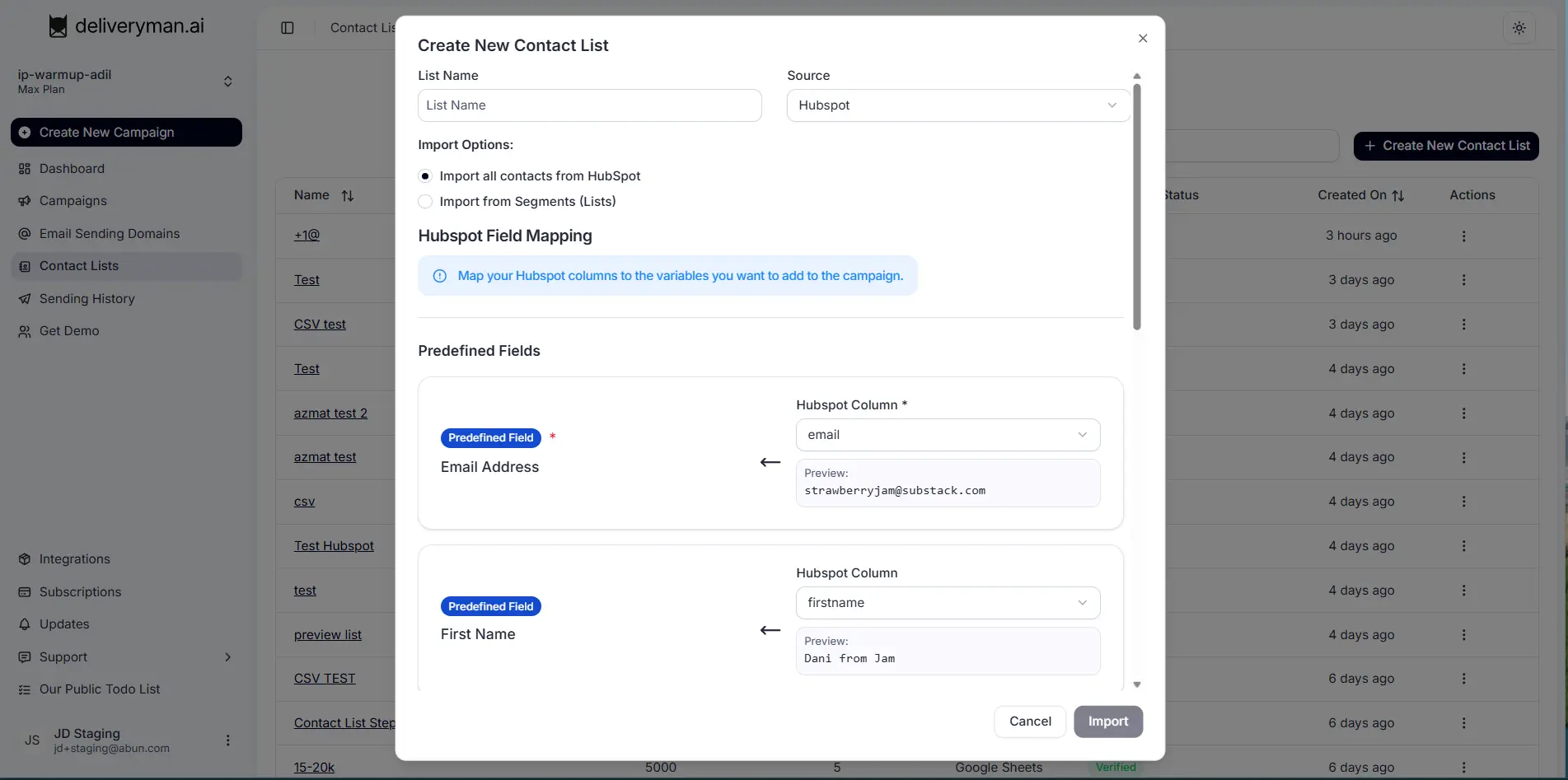
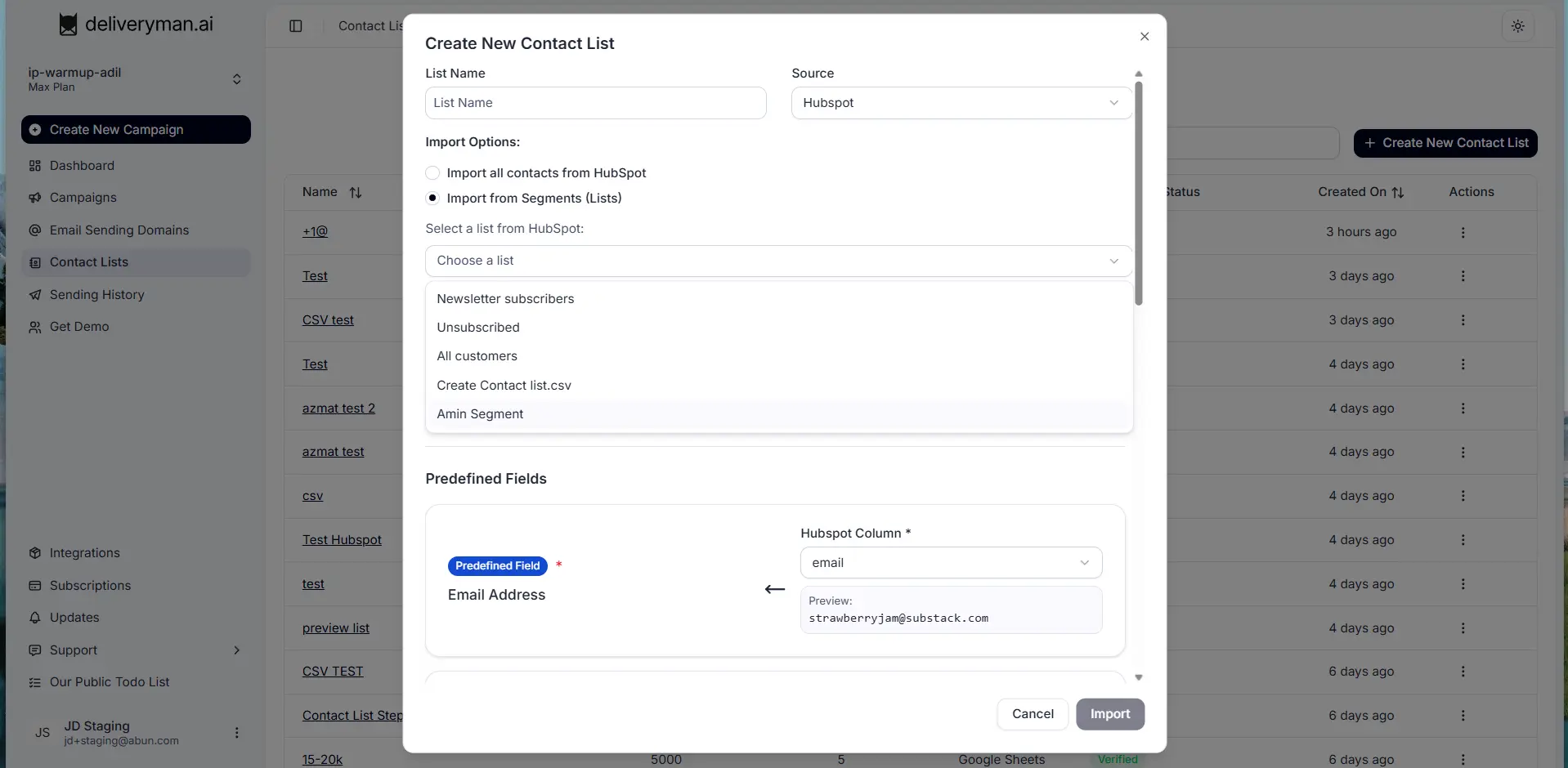
Import from Segments (Lists)
Select this option if you only want to import contacts from a specific HubSpot list.
- Choose Import from Segments (Lists).
- Select the desired list from the Choose a list dropdown.
- Deliveryman.ai will fetch contacts from the selected HubSpot list.
Map HubSpot Fields
After selecting the contacts, you will need to map HubSpot fields to Deliveryman.ai fields.
-
Match each HubSpot column with the corresponding Deliveryman.ai field.
-
The Email Address field is required and must be mapped before importing contacts.
-
You may also map additional fields such as:
- First Name
- Last Name
- Company
- Website
- Custom fields
A preview of the data will appear to help verify the mapping.
Import Contacts
Once the field mapping is completed:
- Click Import.
- Deliveryman.ai will retrieve the contacts from HubSpot.
- The contacts will be added to your Contact List and will be available for campaigns.
Important Notes
- Your HubSpot account must be connected before importing contacts.
- The Email Address field is mandatory for contact imports.
- Make sure the selected HubSpot list contains valid email addresses.
- Contacts imported from HubSpot can be used immediately in campaigns.