
If your sending domain ends up on an email blacklist, your cold emails can start landing in spam or get rejected outright. Most senders don’t notice until replies dry up. That’s why blacklist monitoring matters: the sooner you know a domain is listed, the sooner you can fix it.
Deliveryman AI monitors every domain you connect against more than 100 blacklists, every day. This guide shows you where to check your domain’s blacklist status, what to do if a domain gets listed, and how to stay off blacklists in the first place. Prefer to watch? The full walkthrough is below.
What is an email blacklist?
An email blacklist, also called a blocklist or DNSBL, is a list of domains and IP addresses that have been linked to spam. Organisations like Spamhaus and Barracuda run them, and mailbox providers and spam filters check them when your email arrives.
If your domain isn’t listed, your email is judged on its own merits. If it is listed, your emails are far more likely to be blocked or sent straight to spam, no matter how good the message is.
Not every blacklist carries the same weight. A few are used by almost every spam filter, while others are small and rarely checked. That’s one reason it helps to monitor a wide range of them and know exactly which one you’re on.
Why blacklist monitoring matters for cold email
Cold email depends on a good sender reputation. A blacklist listing damages that reputation quickly, and it’s easy to miss:
- Replies drop without warning. Nothing tells you an email went to spam, so a listing often looks like a bad campaign.
- One domain can hurt a whole campaign. If a listed domain keeps sending, its share of your emails is wasted.
- The longer you wait, the harder it gets. Fixing the cause and requesting removal early is much easier than recovering a domain that kept sending while listed.
Daily blacklist monitoring turns a silent problem into a visible one.
How to check your blacklist status in Deliveryman AI
The Blacklist Status column
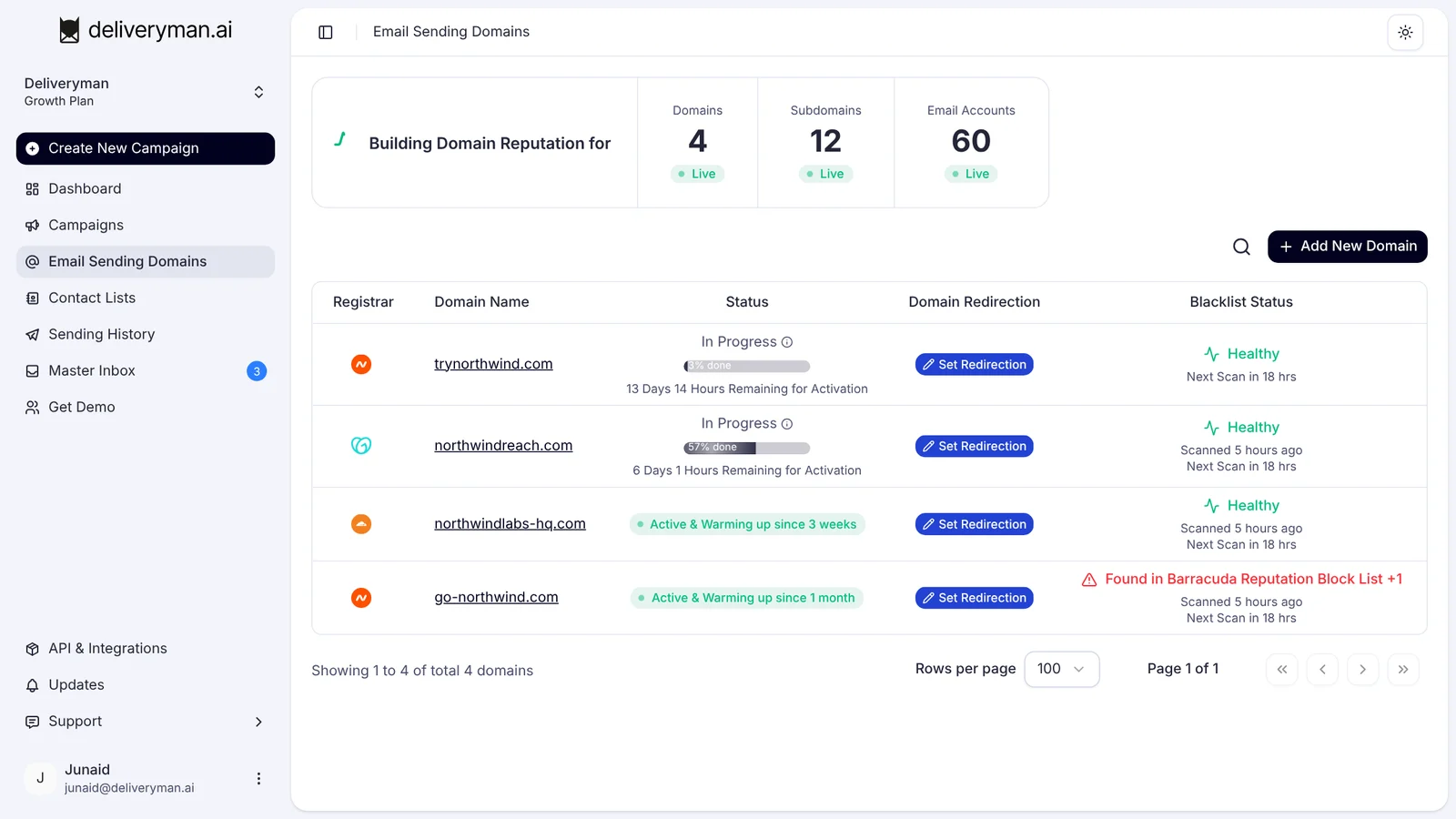
Open Email Sending Domains. The Blacklist Status column shows the health of every domain at a glance.
Healthy means the domain isn’t listed on any blacklist we check. Every domain is scanned daily, and under the status you can see when it was last scanned and when the next scan is due.
When a domain is listed
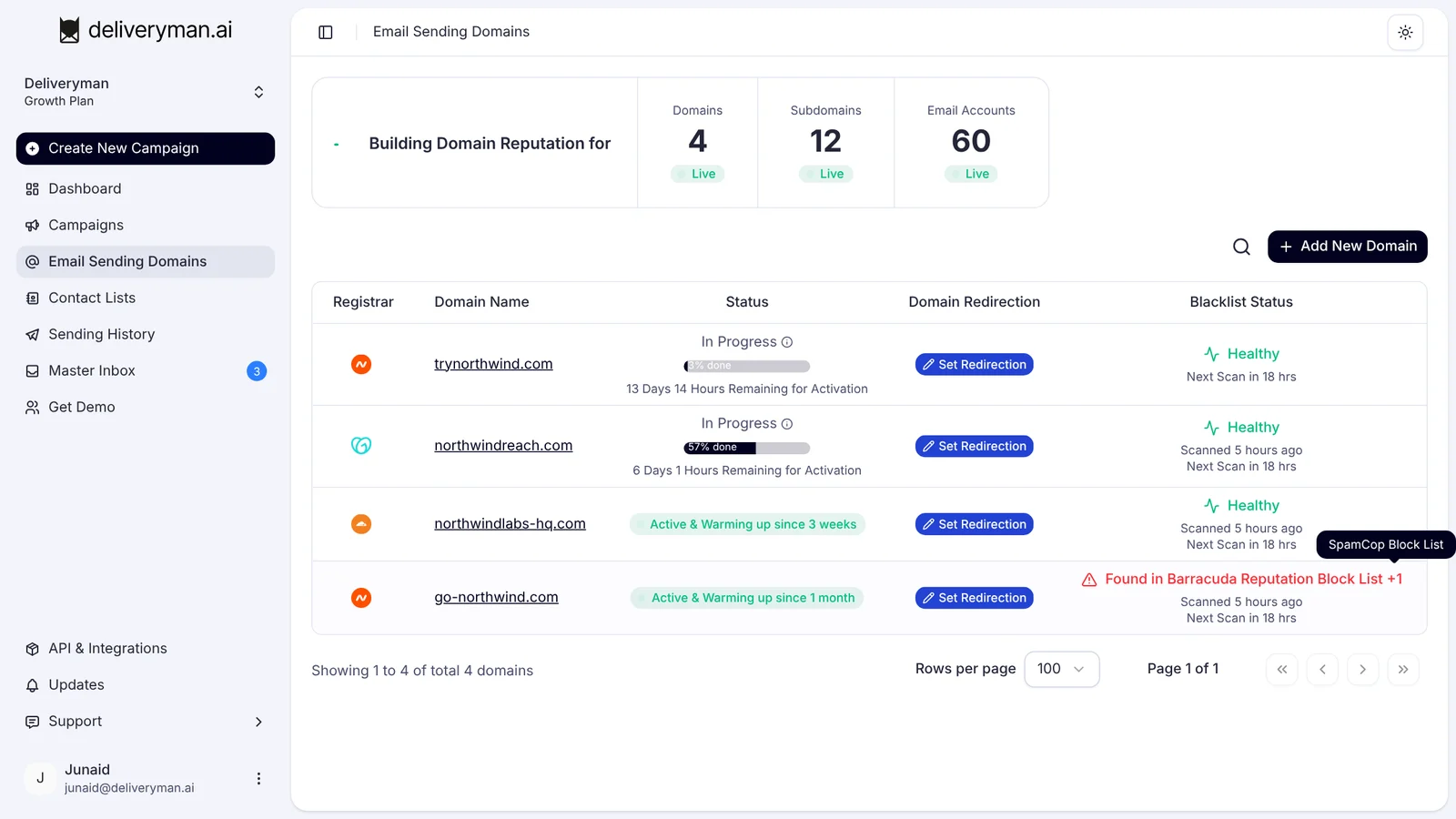
If a domain is listed, its status turns red and shows which blacklist it was found on, for example Found in Barracuda Reputation Block List. Listed on more than one? Hover over the number, like +1, to see them all.
The Blacklist Monitoring tab
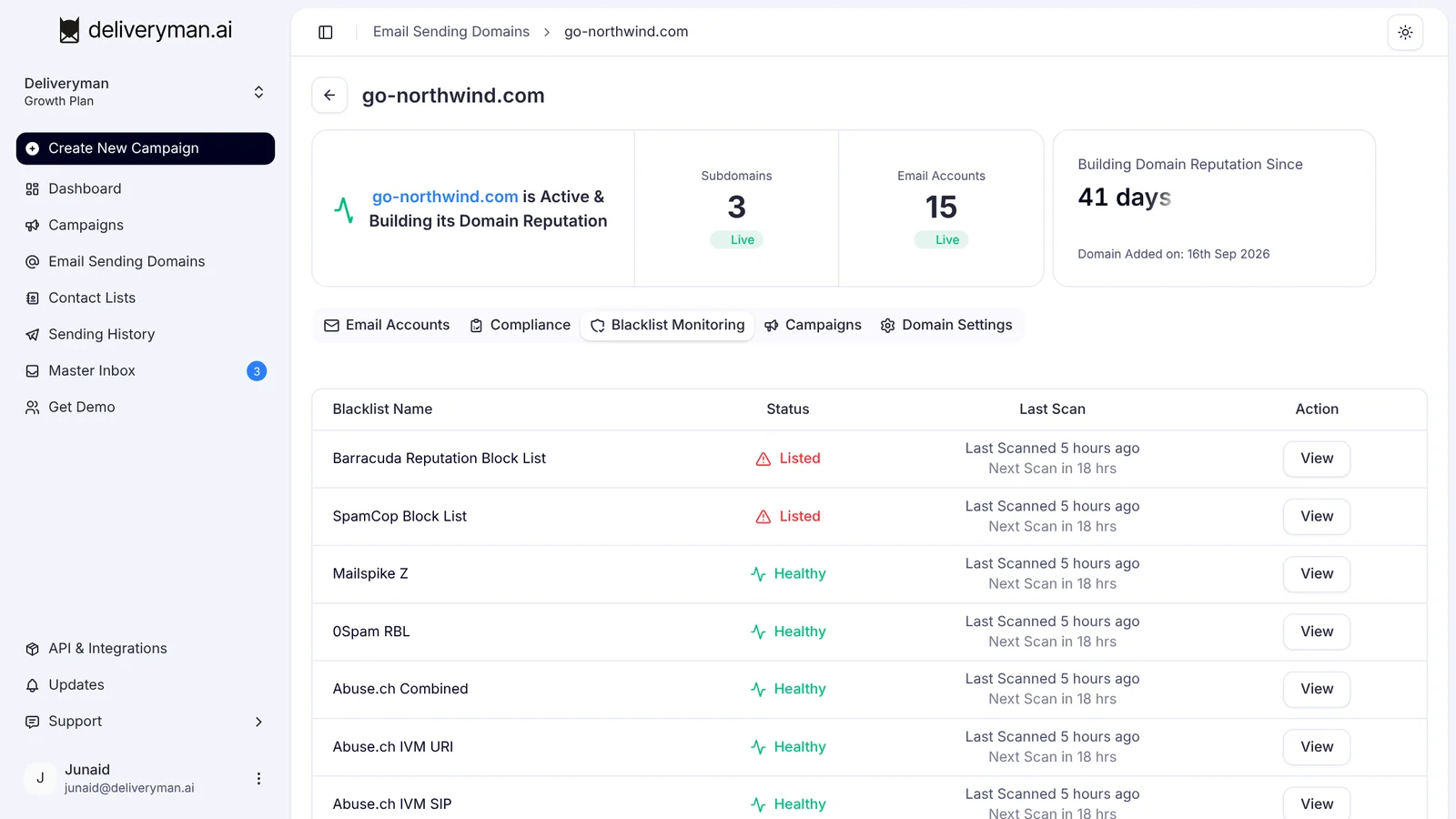
To dig in, click the domain and open the Blacklist Monitoring tab. Here you’ll find every blacklist we check for that domain, its status (Healthy or Listed) and when it was last scanned.
View the details for any blacklist
Click View on any blacklist for the details:
- whether your domain is listed on it
- when it was last scanned
- when the next scan is due
- a link to that blacklist’s own website
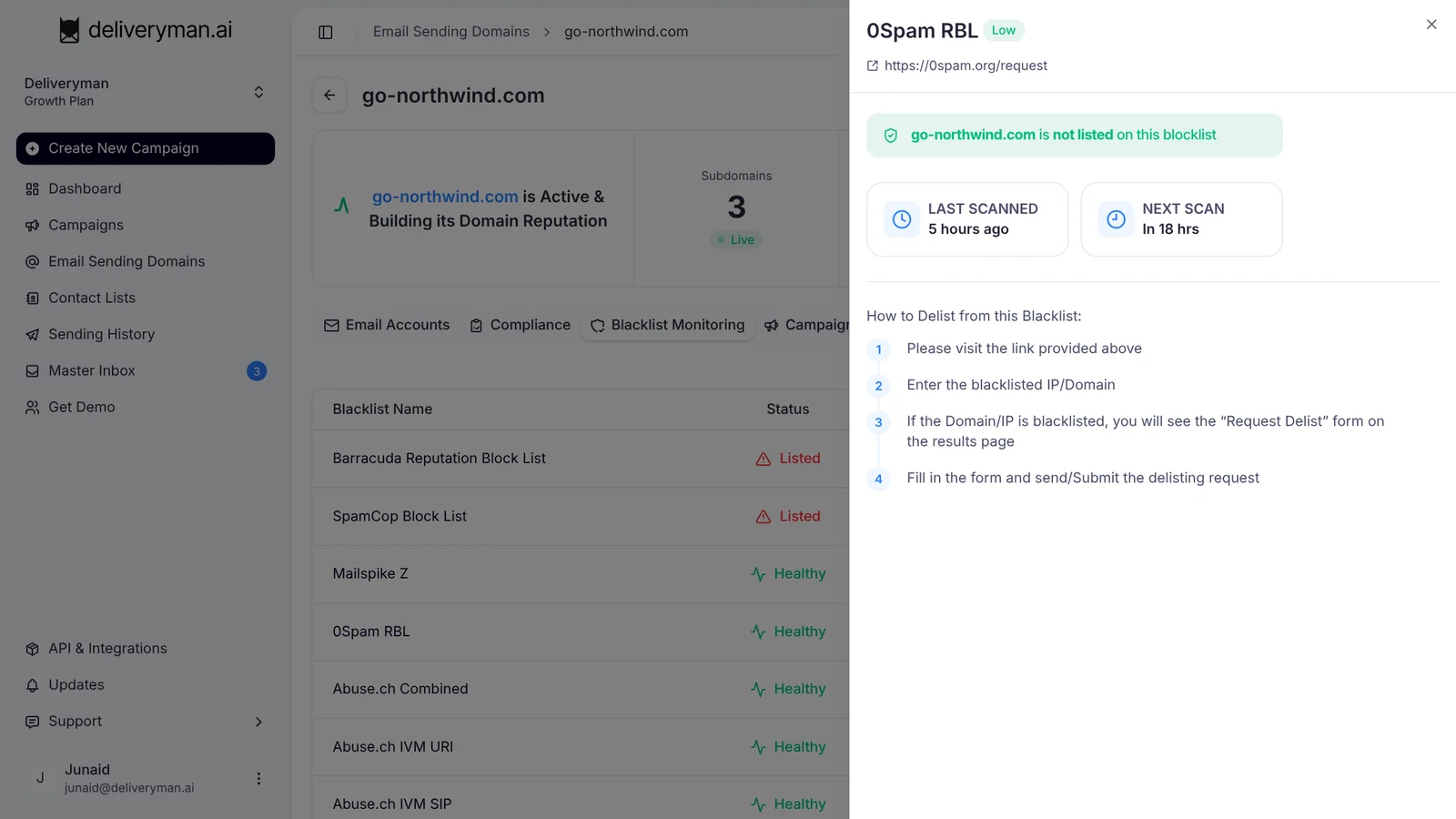
How to get delisted from a blacklist
If your domain is listed, the details panel shows step-by-step instructions for getting delisted from that specific blacklist. They usually look like this:
- Visit the blacklist’s website using the link at the top of the panel.
- Enter the listed domain or IP address.
- If it’s listed, open the removal or Request Delist form on the results page.
- Fill in the form and submit your delisting request.
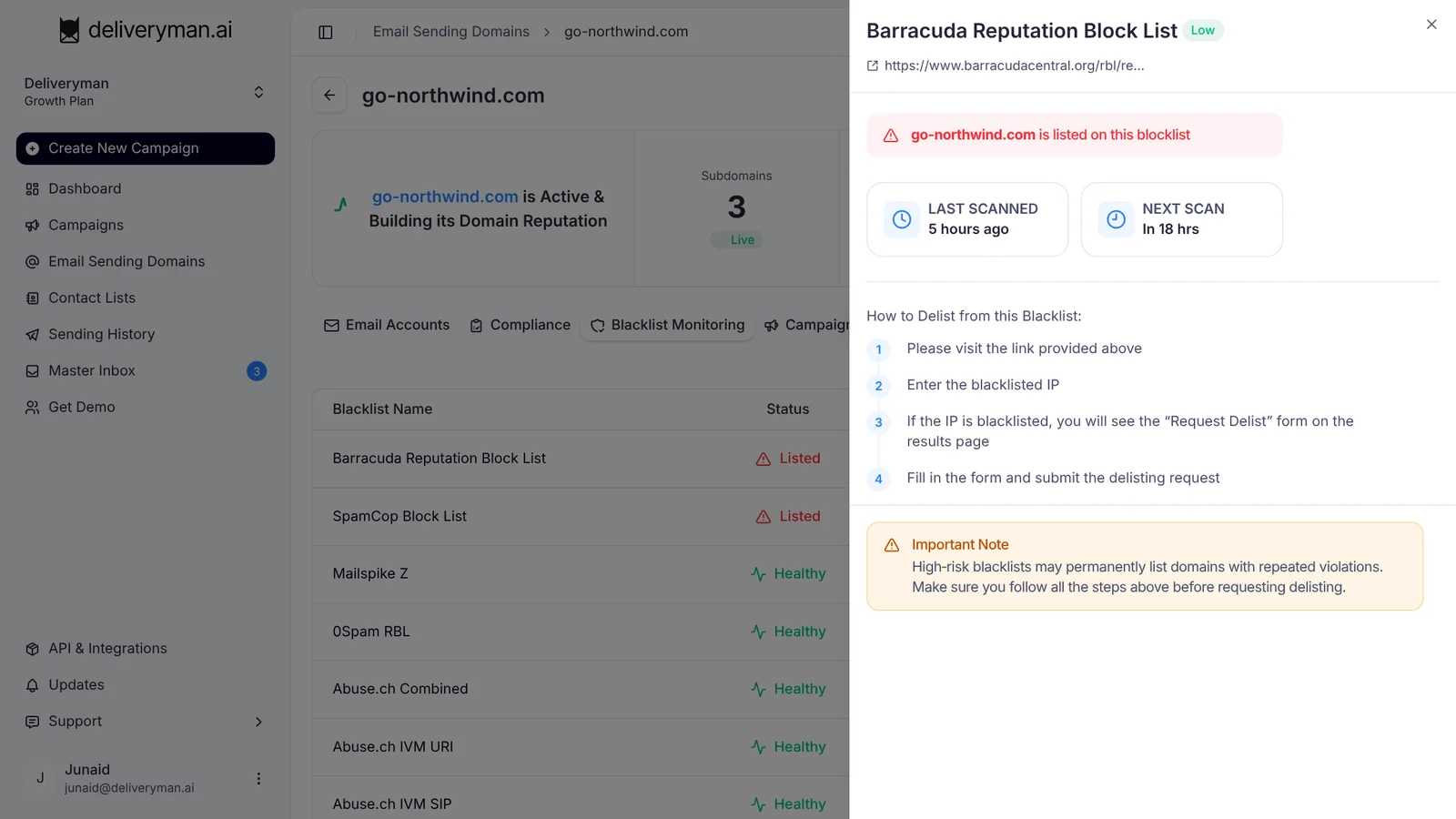
Fix the cause first, then request removal. High-risk blacklists may list a domain permanently after repeated violations, so don’t skip ahead. If the cause is still there, you’ll likely be listed again.
Common causes worth checking before you request removal:
- a list with old or unverified addresses, which leads to high bounces and spam traps
- sending too many emails per day from one domain
- sending from a new domain before warmup has finished
- a sudden spike in spam complaints or unsubscribes
Each blacklist has its own removal process. Our blacklist removal guides cover dozens of them, including the Barracuda Reputation Block List, the SpamCop Block List and Spamhaus DBL.
How to avoid getting blacklisted
The best fix is not getting listed at all:
- Verify your lists before every campaign. Invalid addresses and spam traps are a fast route onto a blacklist. See how to verify your email list.
- Keep your daily sending limit low. Spread volume across several domains instead of pushing one hard. Our cold email sending strategy guide explains how.
- Let new domains finish warmup. A brand-new domain sending at volume looks like a spammer. Read how to warm up your domain for cold email.
- Keep your bounce rate under control. Watch it in your cold email campaign analytics and act before it climbs.
- Follow the big providers’ rules. Google’s email sender guidelines are a good checklist for authentication, volume and complaint rates.
Frequently Asked Questions
How many blacklists does Deliveryman monitor?
Deliveryman checks every domain you connect against more than 100 blacklists.
How often are domains scanned?
Every domain is scanned daily. You can see when it was last scanned and when the next scan is due on the Email Sending Domains page and in each blacklist’s details.
What does Healthy mean?
Healthy means the domain isn’t listed on any of the blacklists Deliveryman checks.
What should I do if my domain is listed?
Open the domain’s Blacklist Monitoring tab, click View on the listed blacklist and follow the delisting steps. Fix the cause first, then submit your removal request.
Is blacklist monitoring included in my plan?
Yes. Blacklist monitoring is included in every Deliveryman plan, for every domain you connect. See pricing.
Next steps
Blacklist monitoring works best alongside good sending habits. Set up your domains the right way with our guide on how to connect your domain and create cold email mailboxes, or see pricing to get started.