
Once your campaign is live, two questions matter: what’s working, and how do you steer it? Your cold email campaign analytics answer the first. Knowing what you can pause, edit and change while a campaign runs answers the second.
This guide covers both. You’ll learn how to read opens, trusted opens, clicks, replies and bounce rate in Deliveryman AI, how to find High Intent leads and follow each lead through your sequence, and how to manage a live campaign. Prefer to watch? The full walkthrough is below.
The campaign Analytics tab
Open your campaign and you land on the Analytics tab. At the top, you can see when the last email went out and when the next one is scheduled. Below that, every key number for the campaign sits in one view.
Opens vs trusted opens: filtering out bot opens
Email providers like Google and Microsoft often open emails automatically to scan them for threats, and privacy features like Apple Mail Privacy Protection load images on the user’s behalf. Both inflate your open rate.
That’s why Deliveryman shows two open numbers:
- Opens counts everything, including potential bot activity.
- Trusted Opens filters out those bot opens, so you see how many real people actually read your email.
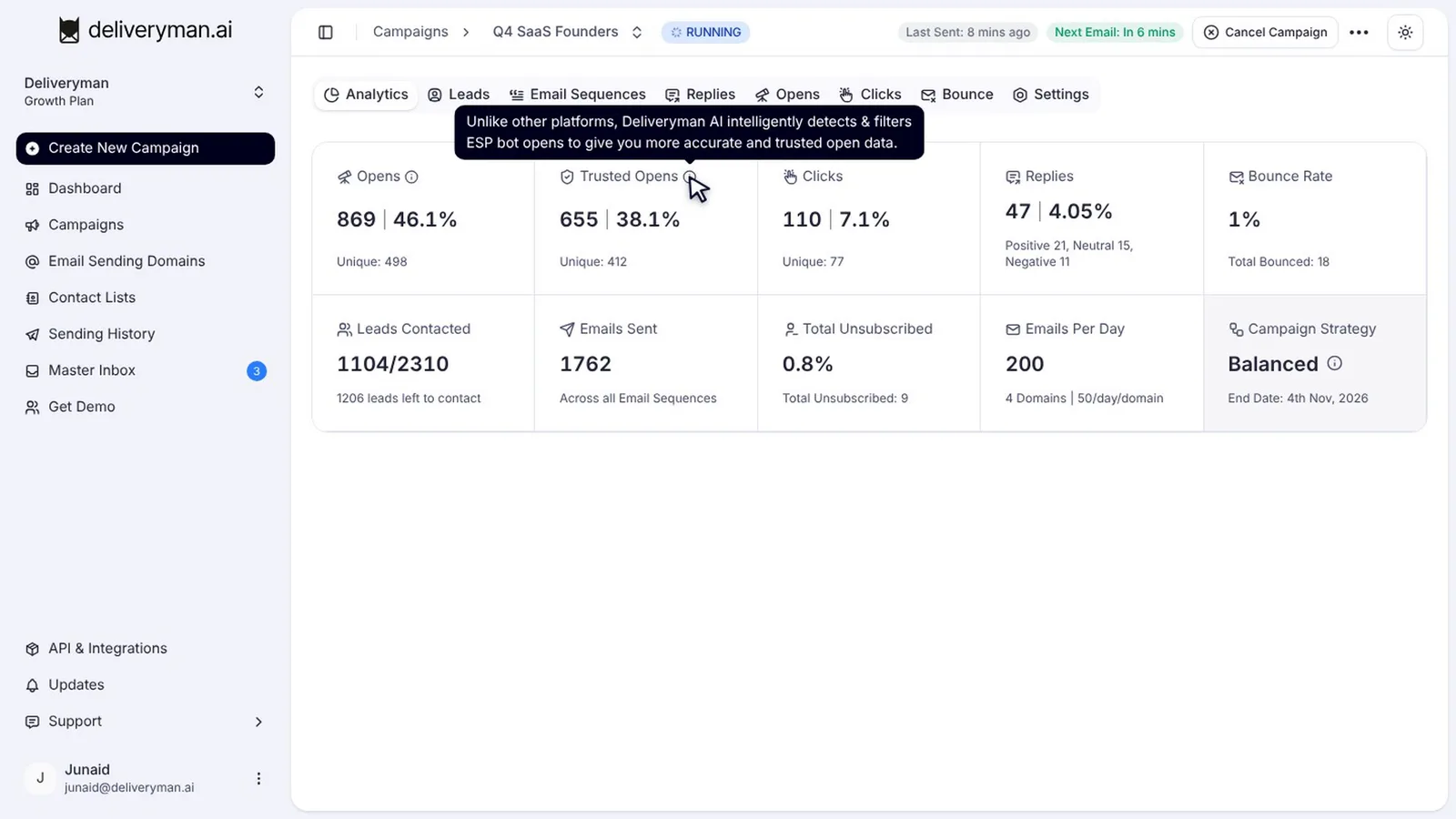
The gap between the two can be large. We dig into why in Instantly and Smartlead admit it: your open rate is lying to you.
Clicks, replies and bounce rate
- Clicks work the same way as opens: total clicks plus trusted clicks, with bot clicks filtered out.
- Replies shows your total, split into positive, neutral and negative, along with your reply rate. Replies are the clearest measure of a campaign. Our 46% reply rate case study shows what a strong campaign looks like.
- Bounce Rate tells you how many emails couldn’t be delivered. Keep it low: high bounce rates are one of the fastest ways to lose inbox placement.
Below those, you’ll find leads contacted, emails sent, unsubscribes and your daily sending volume across domains.
The Opens, Clicks and Bounce tabs
For the detail behind each number, use the tabs.
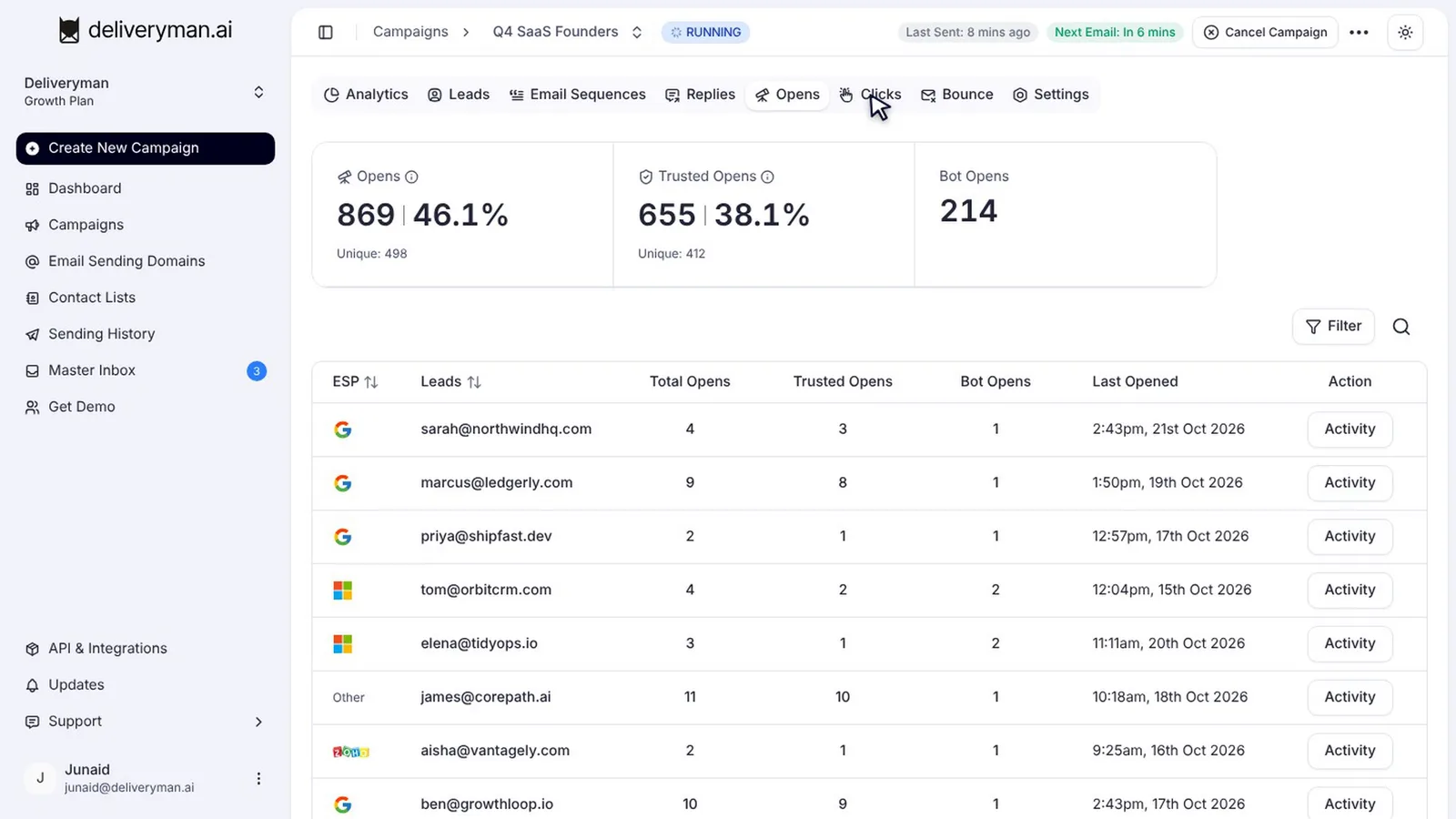
Opens lists every lead who opened, with trusted and bot opens counted separately. Clicks does the same for links.
Bounce charts your daily bounce rate against a 3% warning threshold and a 5% blocking threshold, and lists every bounced address.
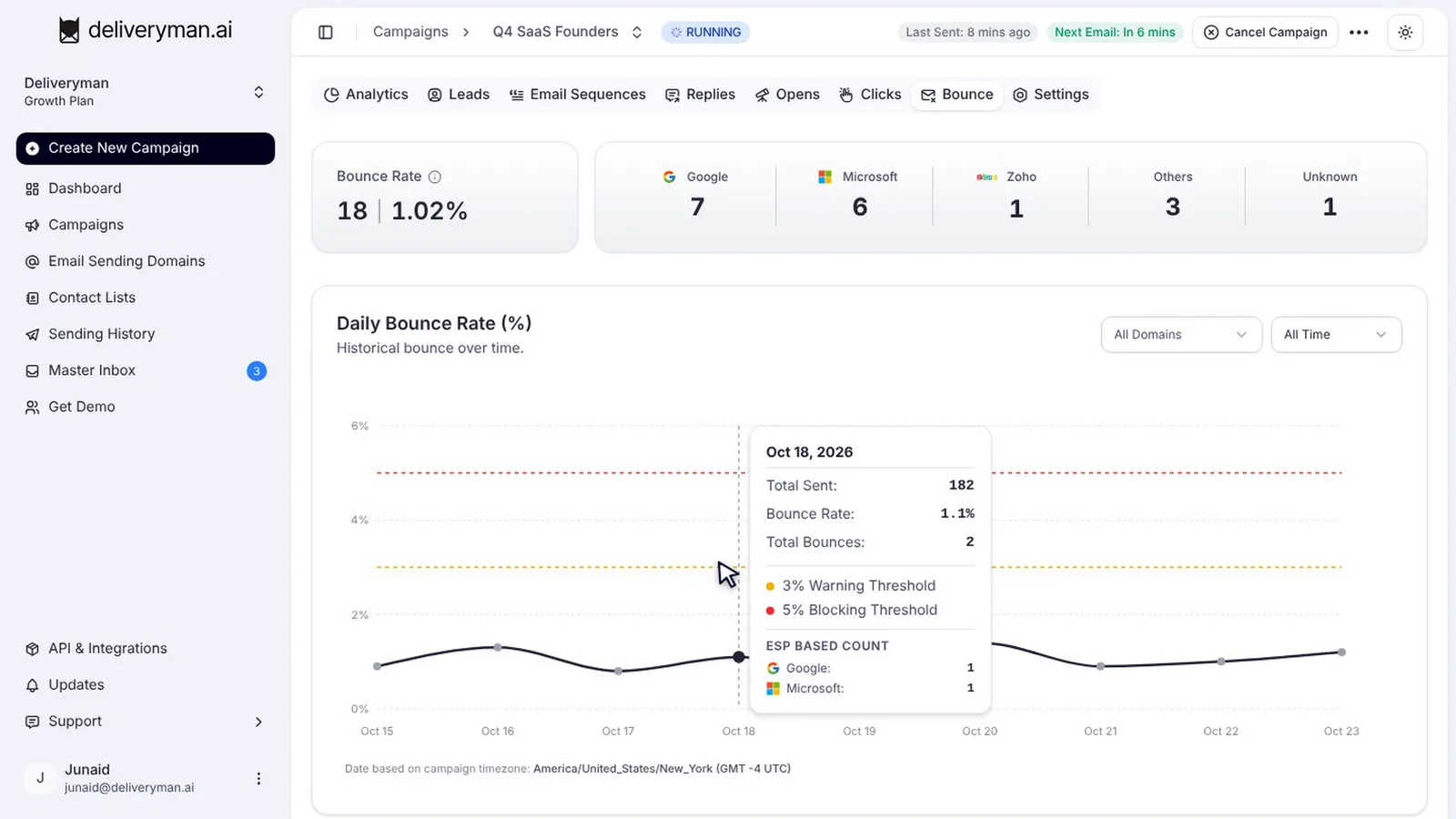
If your bounce rate starts climbing, re-verify your list and tighten the verification skips in your campaign settings. See how to verify your email list. Our SMTP error codes reference explains what individual bounce codes mean.
Find your warmest prospects with High Intent
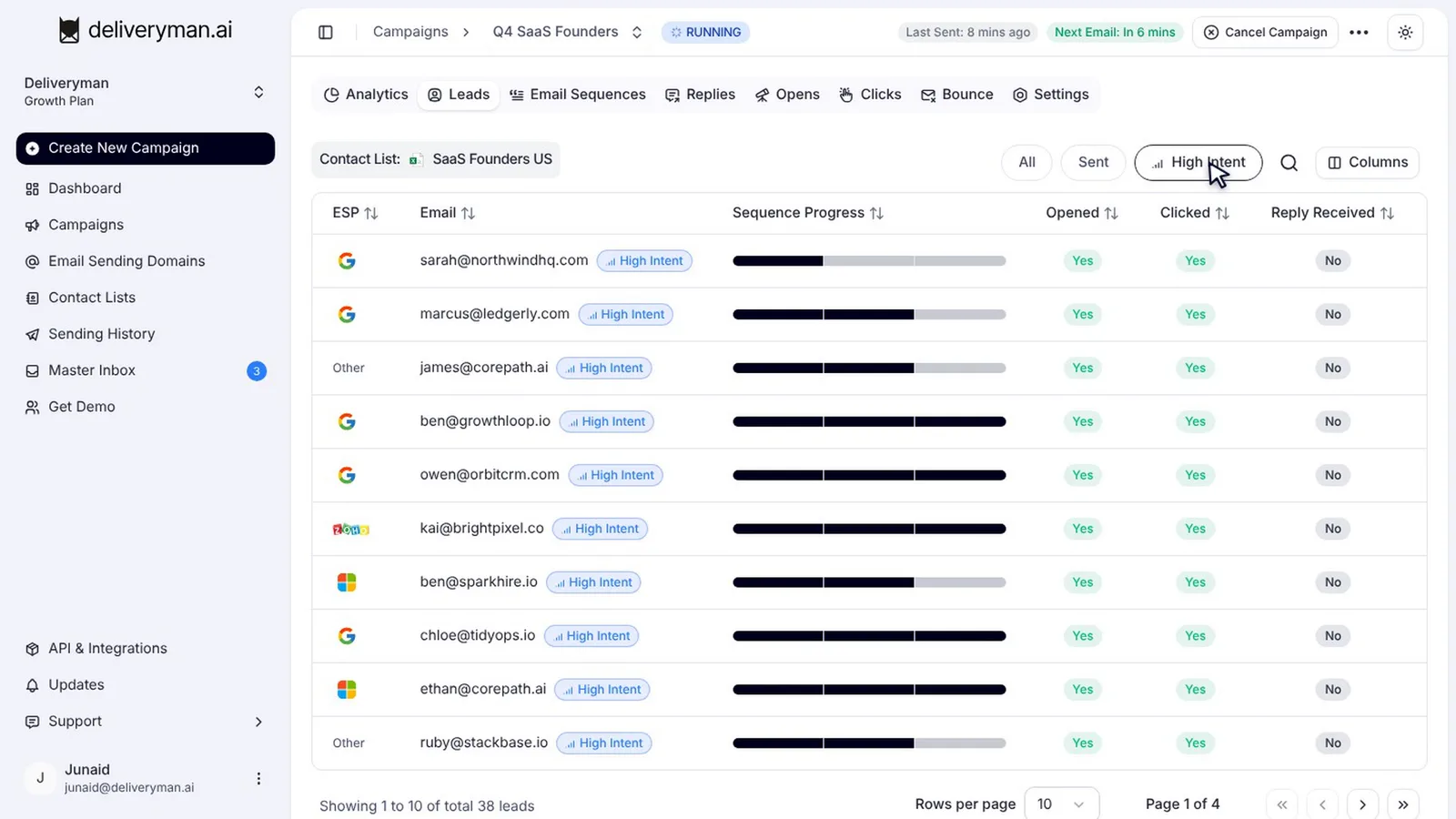
Open the Leads tab. For every lead, you can see whether they opened, clicked, replied, bounced or unsubscribed.
Click High Intent to show only the leads who opened your emails several times. These are your warmest prospects, and worth a personal follow-up while their interest is high.
Read more in Introducing High Intent Leads.
Follow every lead through your sequence
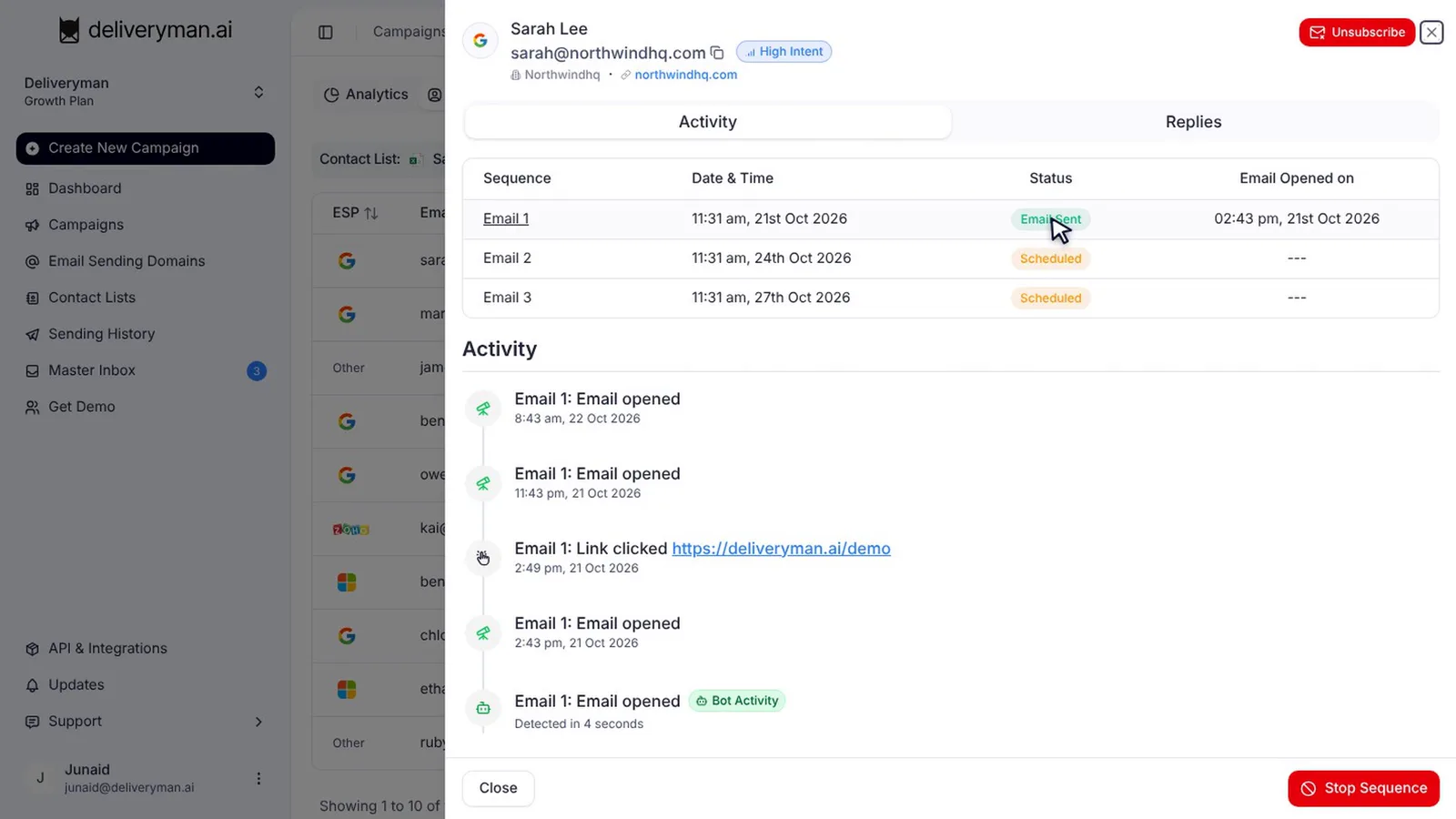
The Sequence Progress bar shows where each lead is in your sequence. Hover over a step to see when it was sent, when it was opened and whether they replied.
Click a lead to see their full history: every email and its status, plus an activity timeline where bot opens are clearly marked. From here you can also stop the sequence for just that lead.
How to manage a live cold email campaign
Pause and resume
Open the menu at the top of the campaign and click Pause Campaign. No new emails go out while it’s paused. When you’re ready, click Resume Campaign and sending picks up again.
What’s locked while a campaign is running
Some things can’t change once a campaign is live:
- In Email Sequences, you can’t add or remove steps.
- In Settings, you need to pause the campaign before you add or remove sending domains.
Edit emails in a running campaign
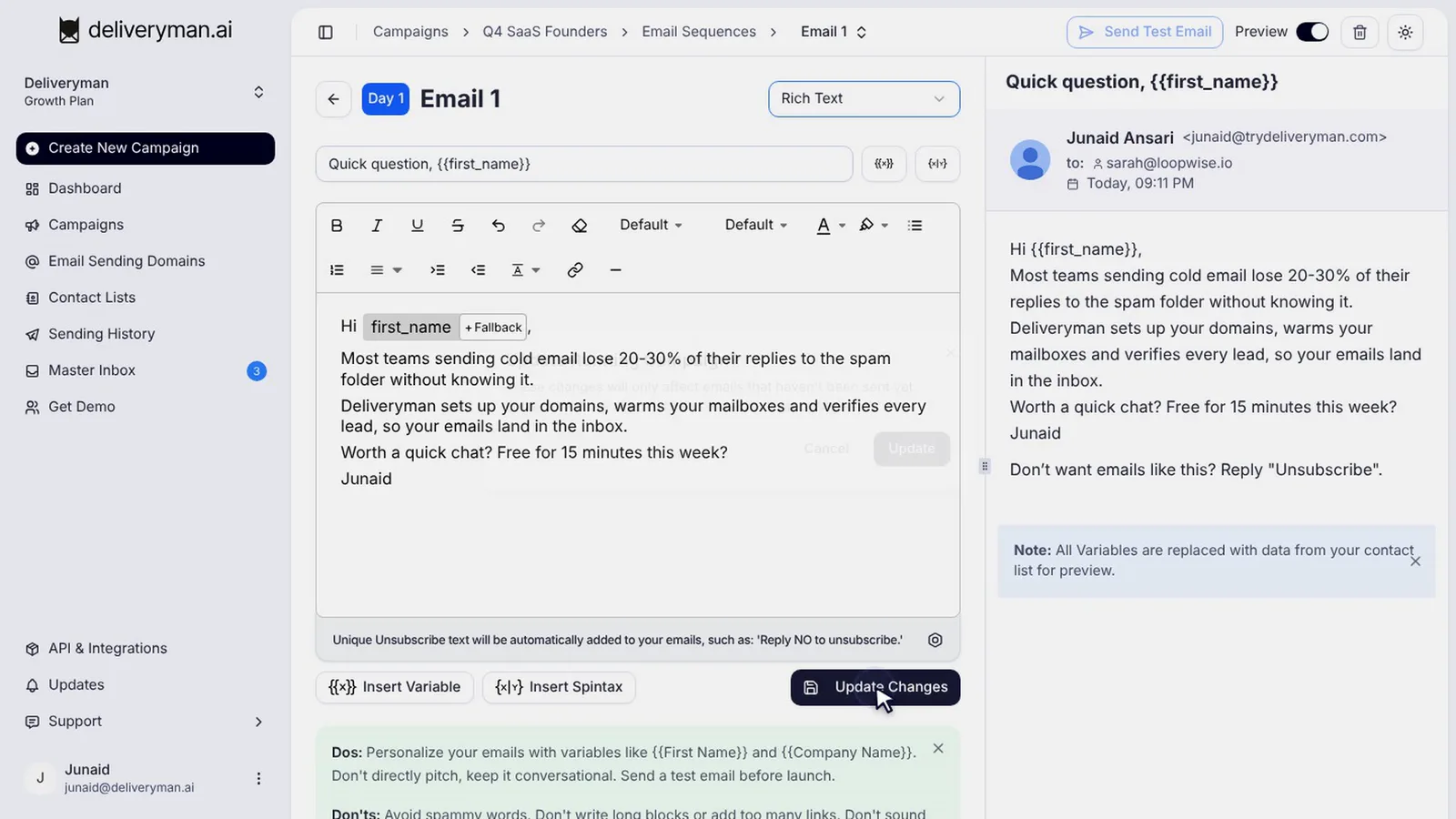
You can still edit the content of your emails. Click Edit on an email, make your change and click Update Changes. Deliveryman asks you to confirm, because the edit only applies to emails that haven’t been sent yet. Emails already sent can’t be changed.
Export and duplicate
From the same menu, you can export the campaign as a CSV or duplicate it. Duplicating copies your settings and email sequences into a new campaign, but not your contact lists or domains, so you can reuse a winning setup for a new audience.
Cancel a campaign
To stop for good, click Cancel Campaign. All future emails are cancelled, and you’ll still receive replies, but a cancelled campaign can’t be resumed. If you might want to continue later, pause instead.
Which cold email metrics matter most?
| Metric | What it tells you | What to watch |
|---|---|---|
| Reply rate | Whether your message works | The main measure of success |
| Positive replies | Real interest from leads | Your pipeline |
| Bounce rate | List quality and domain health | Stay well under the 3% warning line |
| Trusted opens | Real reads, without bot noise | Subject lines and inbox placement |
| Unsubscribes | Targeting and tone | Sudden spikes |
Frequently asked questions
What is the difference between opens and trusted opens?
Opens count every open, including automatic opens by email security scanners and privacy proxies. Trusted Opens filter out those bot opens so you see real readers.
What bounce rate is too high?
Deliveryman’s bounce chart shows a 3% warning threshold and a 5% blocking threshold. Aim to stay well below 3%.
Can I edit a cold email campaign after it starts?
You can edit the content of emails that haven’t been sent yet. You can’t add or remove sequence steps while the campaign runs, and you need to pause it to add or remove sending domains.
What happens when I cancel a campaign?
All future emails are cancelled and you still receive replies, but the campaign can’t be resumed. Pause instead if you might continue later.
Does duplicating a campaign copy my contacts?
No. Duplicating copies settings and email sequences, but not contact lists or domains.
Next steps
Your replies all land in one place: learn how to use the Master Inbox to read and answer them. Want better numbers from the start? Pick the right cold email sending strategy, or see pricing.