
Before you send a single cold email, you need the right infrastructure: a separate sending domain, several mailboxes, SPF, DKIM and DMARC records, and time to warm everything up. Done by hand, that’s hours of DNS work and a lot of room for mistakes.
In Deliveryman AI, you connect one domain and we build the rest for you: subdomains, 15 mailboxes, authentication records and automatic warmup. This guide walks you through every step of connecting your domain and creating cold email mailboxes. Prefer to watch? The full walkthrough is below.
What you need before you start
- A separate domain for cold email. Don’t use your primary business domain. If a cold campaign hurts its reputation, your normal business email suffers too.
- Ideally a .com that looks like your brand, such as getyourbrand.com or tryyourbrand.com.
- No website or mailbox on it. Connecting the domain changes its nameservers, which stops any existing website or email on that domain from working.
- Access to your domain registrar, the company where you bought the domain, such as GoDaddy, Namecheap, Porkbun or Hostinger.
Why SPF, DKIM and DMARC matter
These three DNS records prove that you’re allowed to send email from your domain:
- SPF (RFC 7208) lists the servers allowed to send for your domain.
- DKIM (RFC 6376) adds a cryptographic signature so receivers can check the email wasn’t altered.
- DMARC (RFC 7489) tells receivers what to do when SPF or DKIM fails.
Gmail, Yahoo and Outlook now expect them. Google’s sender guidelines, Yahoo’s sender best practices and Microsoft’s requirements for high-volume senders all ask senders to authenticate their mail. Deliveryman sets up all three for you.
How to connect your domain to Deliveryman AI
Step 1: Add a new domain
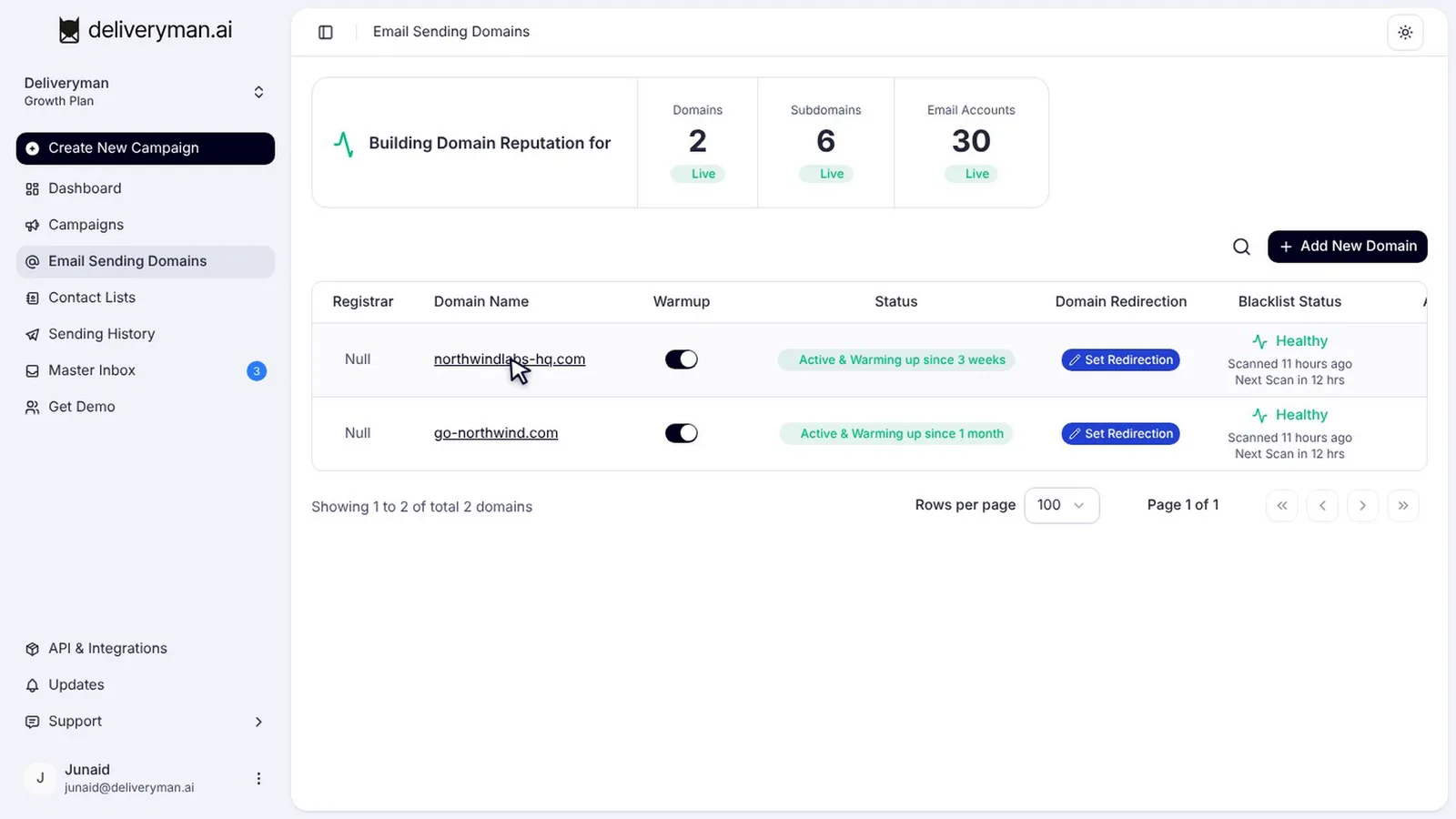
Go to Email Sending Domains. Here you’ll see every domain you’ve connected, its warmup status and its blacklist health. Click Add New Domain.
Step 2: Enter your domain
Type the domain you want to send from and click Proceed. Remember: use a separate domain without a website or mailbox on it.
Step 3: Copy the nameserver records
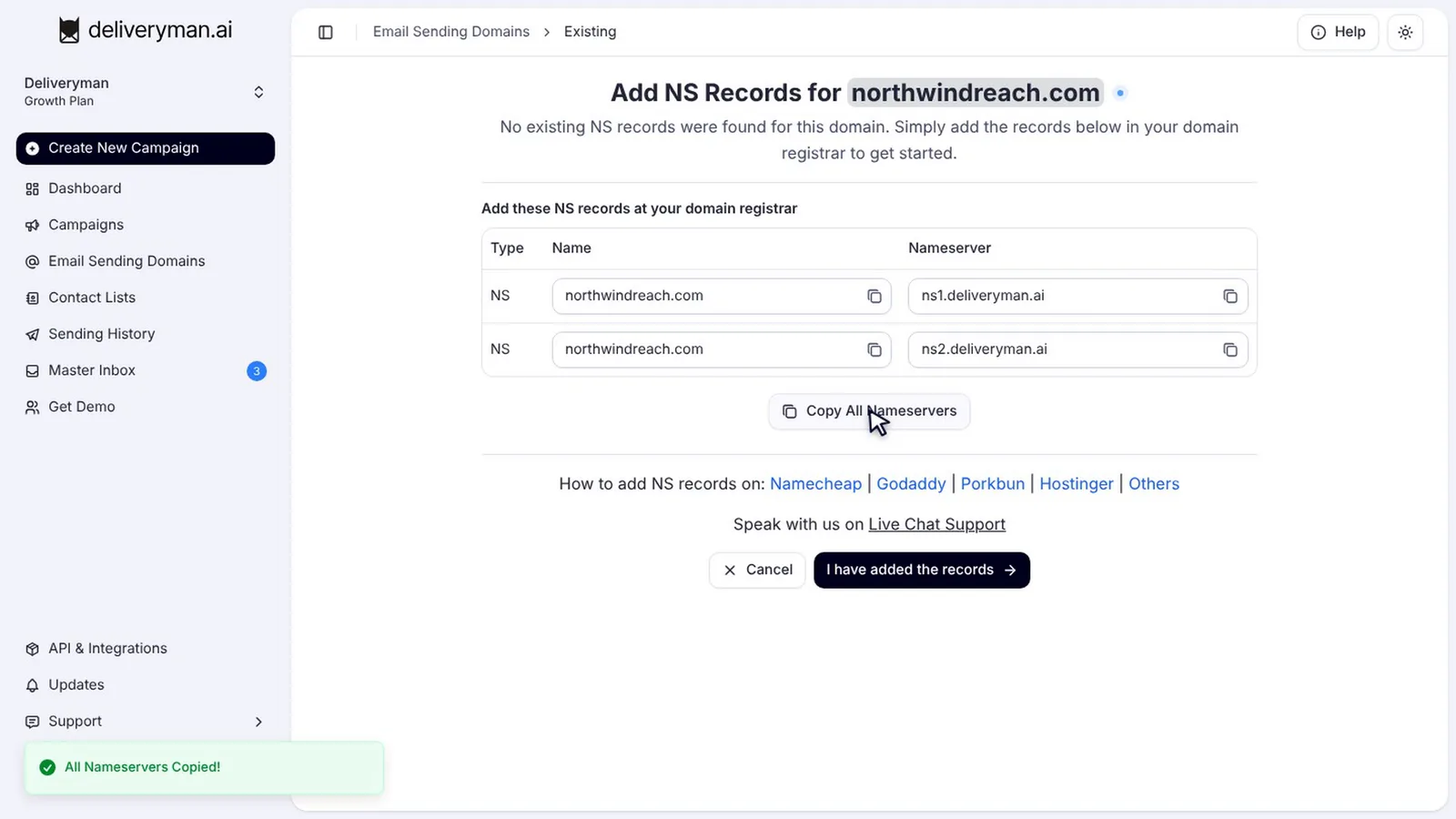
Deliveryman shows you the nameserver (NS) records to add. Click Copy All Nameservers. You’ll paste them at your domain registrar.
Step 4: Update the nameservers at your registrar
Log in to your registrar, open your domain’s nameserver settings and choose custom nameservers. Remove the old ones, paste in the Deliveryman nameservers and save. We have step-by-step guides for the most popular registrars:
- How to add NS records in GoDaddy
- How to add NS records in Namecheap
- How to add NS records in Porkbun
- How to add NS records in Hostinger
You’ll find guides for dozens of other registrars in our DNS setup category.
Step 5: Let Deliveryman check your nameservers
Back in Deliveryman, click I have added the records. Deliveryman checks your nameservers automatically. This usually takes one to three minutes.
How to create your cold email mailboxes
Step 6: Choose your sender names
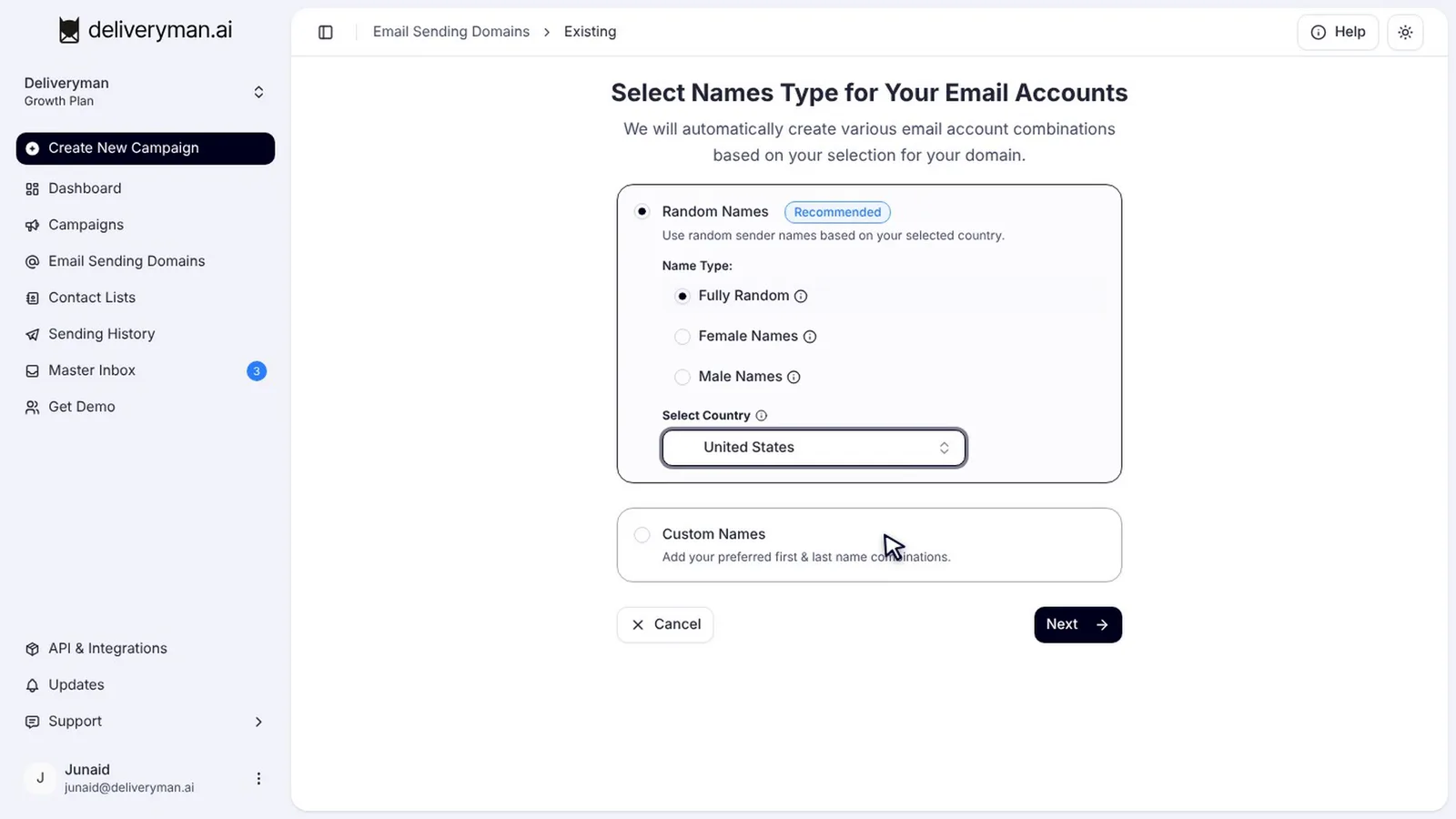
Next, choose how your sender names look. Random Names is recommended: pick fully random, female or male names, and select a country so the names fit your audience. Or switch to Custom Names to use your own. Then click Next.
Step 7: Review your 15 mailboxes
In a few seconds your mailboxes are ready. Deliveryman creates 15 email accounts across three subdomains, with no additional charges. Want to tweak one? Click Edit to change the sender name or email address. When you’re happy, click Next.
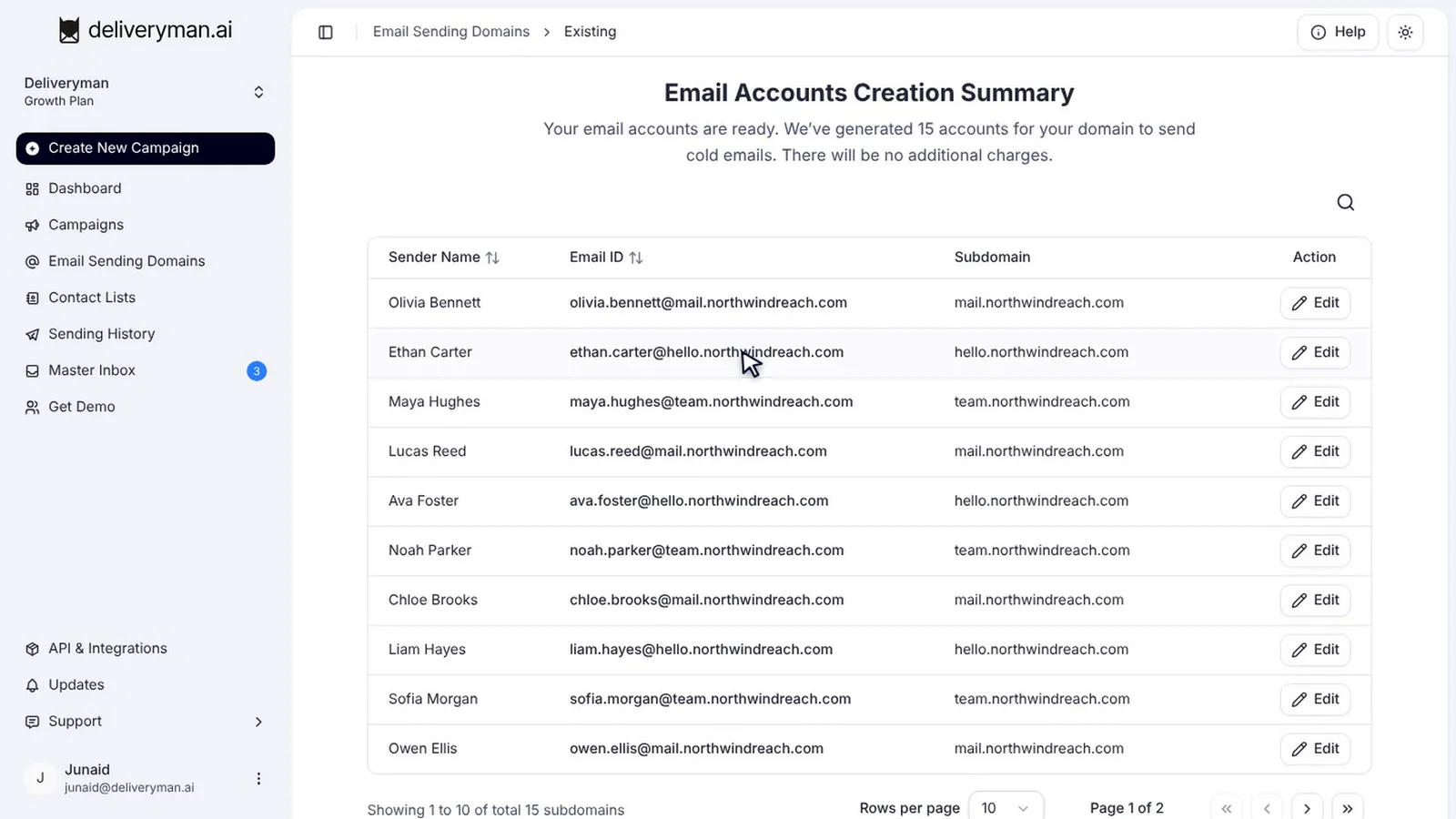
Spreading sending across several mailboxes and subdomains means no single inbox carries the whole load, which keeps each one at a volume mailbox providers trust.
Step 8: Let the setup finish in the background
Deliveryman now sets everything up: your SPF, DKIM and DMARC records, the subdomains and the mailboxes. You don’t need to stay on the page. Once it’s done, warmup starts automatically.
What happens next: automatic warmup
Your new domain shows up in Email Sending Domains with its warmup progress. Reputation building takes about 14 days, and you’ll be able to launch campaigns from the domain once it completes. Click the domain to see every mailbox that was created.
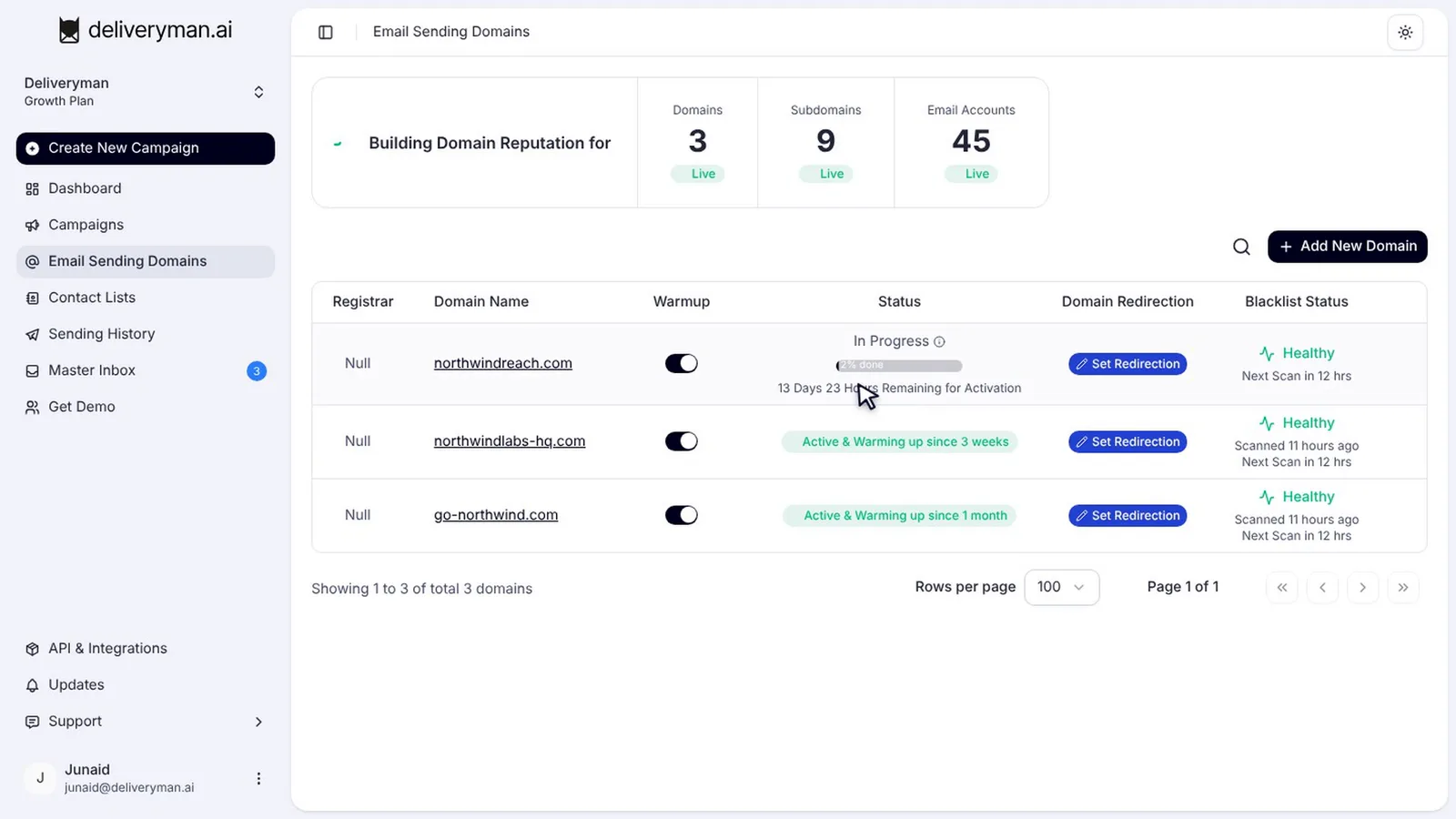
Learn exactly how this works in our guide on how to warm up your domain for cold email.
Frequently Asked Questions
Can I use my main business domain?
We don’t recommend it. Connecting a domain changes its nameservers, which stops any existing website or email on it, and cold outreach puts that domain’s reputation at risk.
How many mailboxes do I get per domain?
Deliveryman creates 15 email accounts across three subdomains for every domain you connect, at no extra cost.
How long does it take to connect a domain?
The nameserver check usually takes one to three minutes once the records are added at your registrar. Mailbox creation takes a few seconds, and the rest of the setup finishes in the background.
Do I need to set up SPF, DKIM and DMARC myself?
No. Deliveryman creates all these as well as other records for you as part of the setup automatically.
How many domains should I connect?
Each domain can send up to 100 emails a day, so more domains let you reach leads faster while keeping volume per domain low. See our guide to cold email sending strategies for how volume is shared.
Next steps
While your domain warms up, prepare the rest of your campaign. Verify your email list, then follow our guide on how to set up a cold email campaign. Ready to connect your first domain? See pricing.