
A cold email master inbox is the one place where every reply to your outreach lands, no matter which campaign, domain or mailbox it came from. Once your campaigns start getting replies, they arrive across dozens of mailboxes. Logging in to each one to check for answers doesn’t scale, and a reply you miss is a lead you lose.
Deliveryman AI’s Master Inbox brings every reply, from every campaign and every sending mailbox, into one screen. This guide shows you how to use the cold email master inbox: how replies are sorted, how to read a conversation and how to reply without leaving Deliveryman. Prefer to watch? The full walkthrough is below.
What is a cold email master inbox?
Cold email works best when you spread sending across several domains and mailboxes. Deliveryman creates 15 mailboxes for every domain you connect, which protects your sender reputation, but it also means replies land in many different inboxes.
A cold email master inbox, sometimes called a unified inbox or unibox, brings all of those replies together. You read and answer every lead from one screen, and each reply still goes out from the mailbox that emailed the lead.
How to open the cold email master inbox
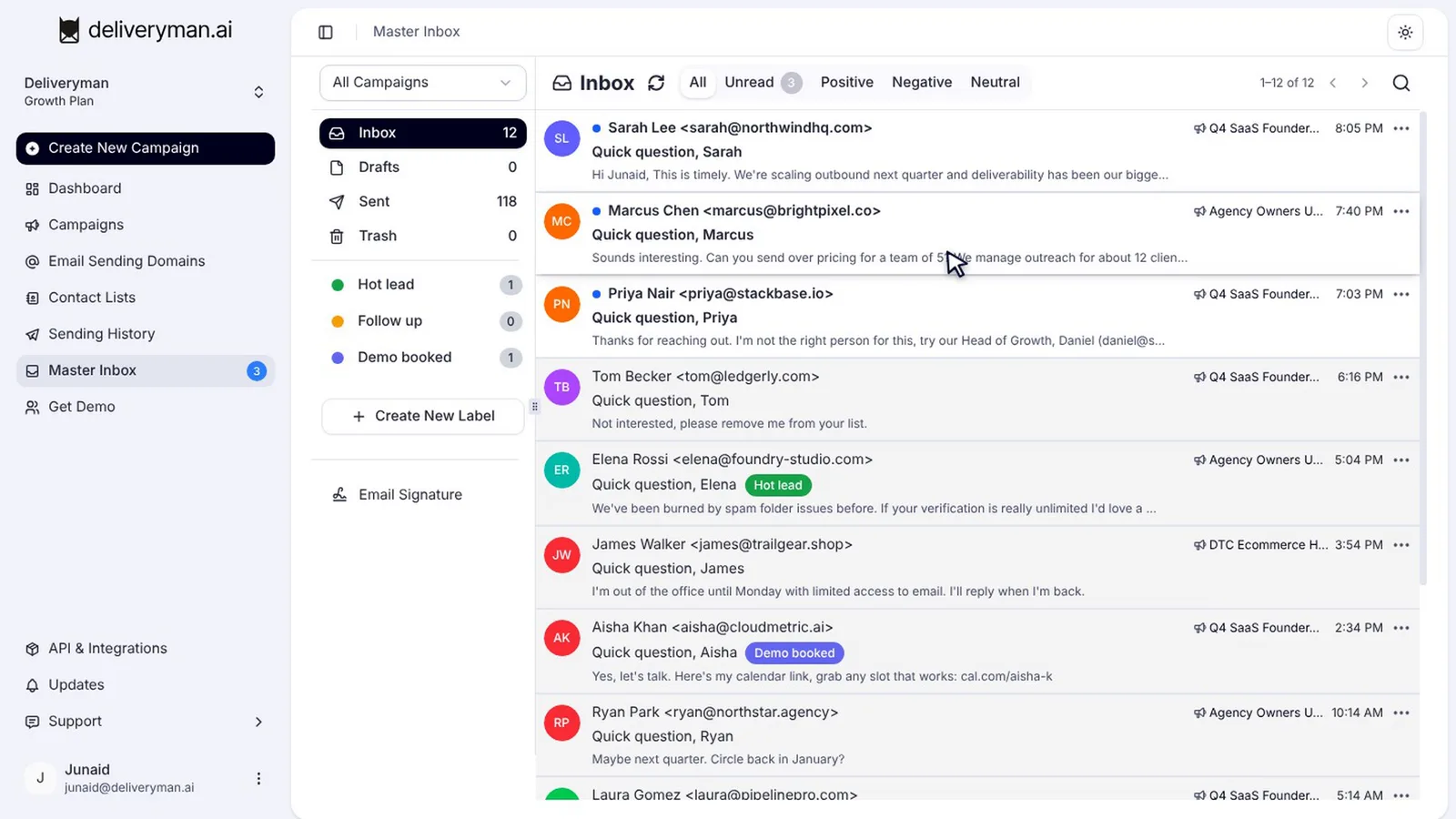
Click Master Inbox in the sidebar. The badge next to it shows how many replies you haven’t read yet.
Every reply lands here. Each row shows who replied, which campaign it came from and a preview of their message. Unread replies are shown in bold with a blue dot.
How the master inbox sorts replies
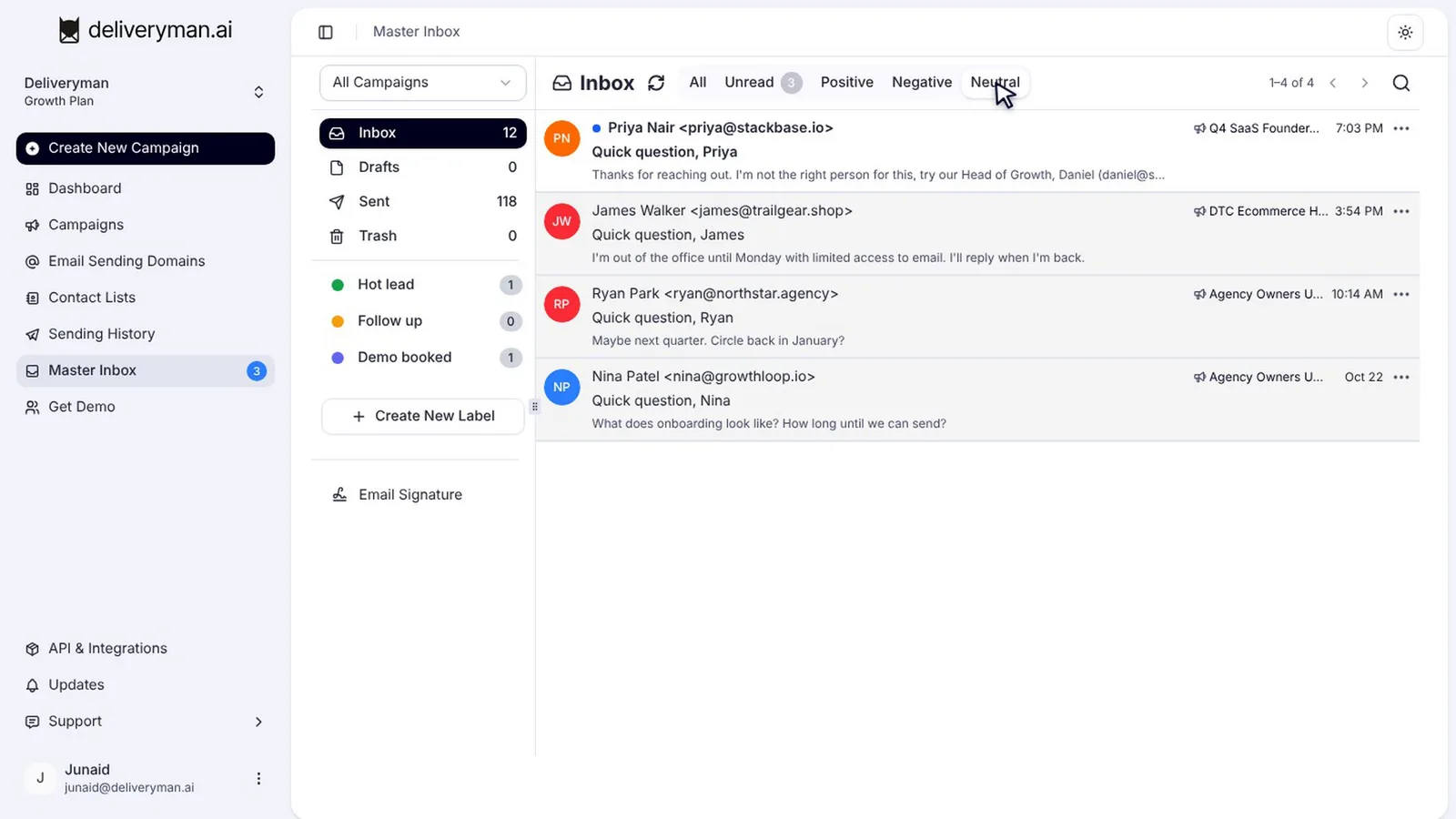
Deliveryman reads every reply and sorts it by sentiment for you. Use the tabs at the top of the list:
| Tab | What it shows |
|---|---|
| All | Every reply |
| Unread | Replies you haven’t opened yet |
| Positive | Leads who are interested |
| Neutral | Replies that aren’t a clear yes or no, like a referral or a “check back later” |
| Negative | Not-interested replies |
Start your day on the Positive tab, so the leads who want to talk get an answer first.
Filter by campaign and search
To focus on one campaign, pick it from the campaign filter at the top of the sidebar. The list and the folder counts update to match. You can also search by name, email, company or anything in the message, which is handy when a lead mentions a topic you want to follow up on.
Organise replies with labels
For your own workflow, use labels. Click Create New Label, give it a name, pick a colour and create it. Then open the menu on any reply, choose Add Label and tick the label. Click a label in the sidebar to see every conversation tagged with it.
Labels work well for stages that matter to you, such as “Pricing asked”, “Demo booked” or “Follow up next quarter”.
Read a conversation
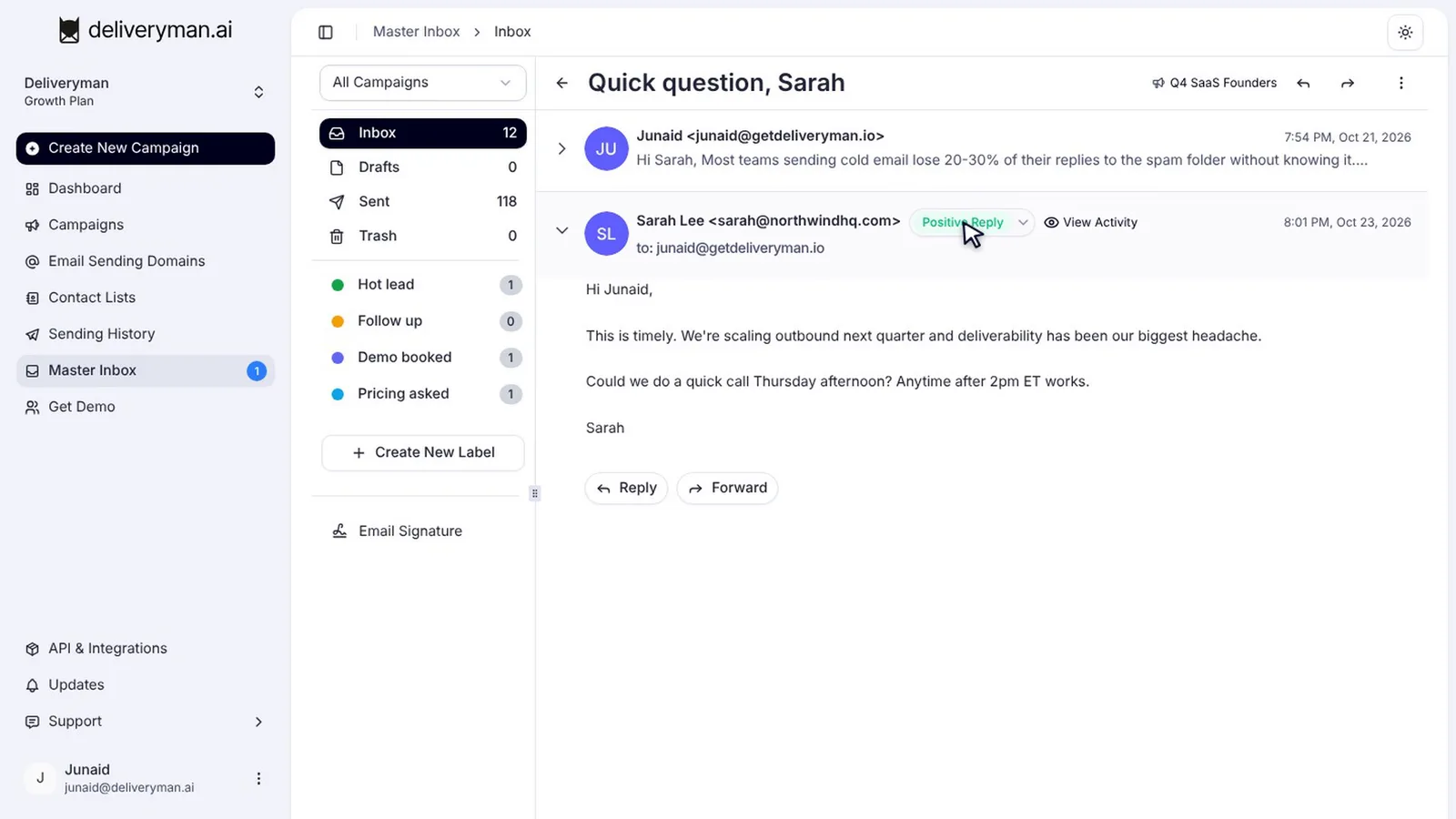
Click a reply to open the conversation. Your original email and the lead’s reply sit together in one thread, and the conversation is marked as read automatically.
Next to the lead’s reply is the sentiment Deliveryman assigned. If it got one wrong, click it and pick the right one: Positive, Neutral or Negative (Unsubscribe).
Check a lead’s activity
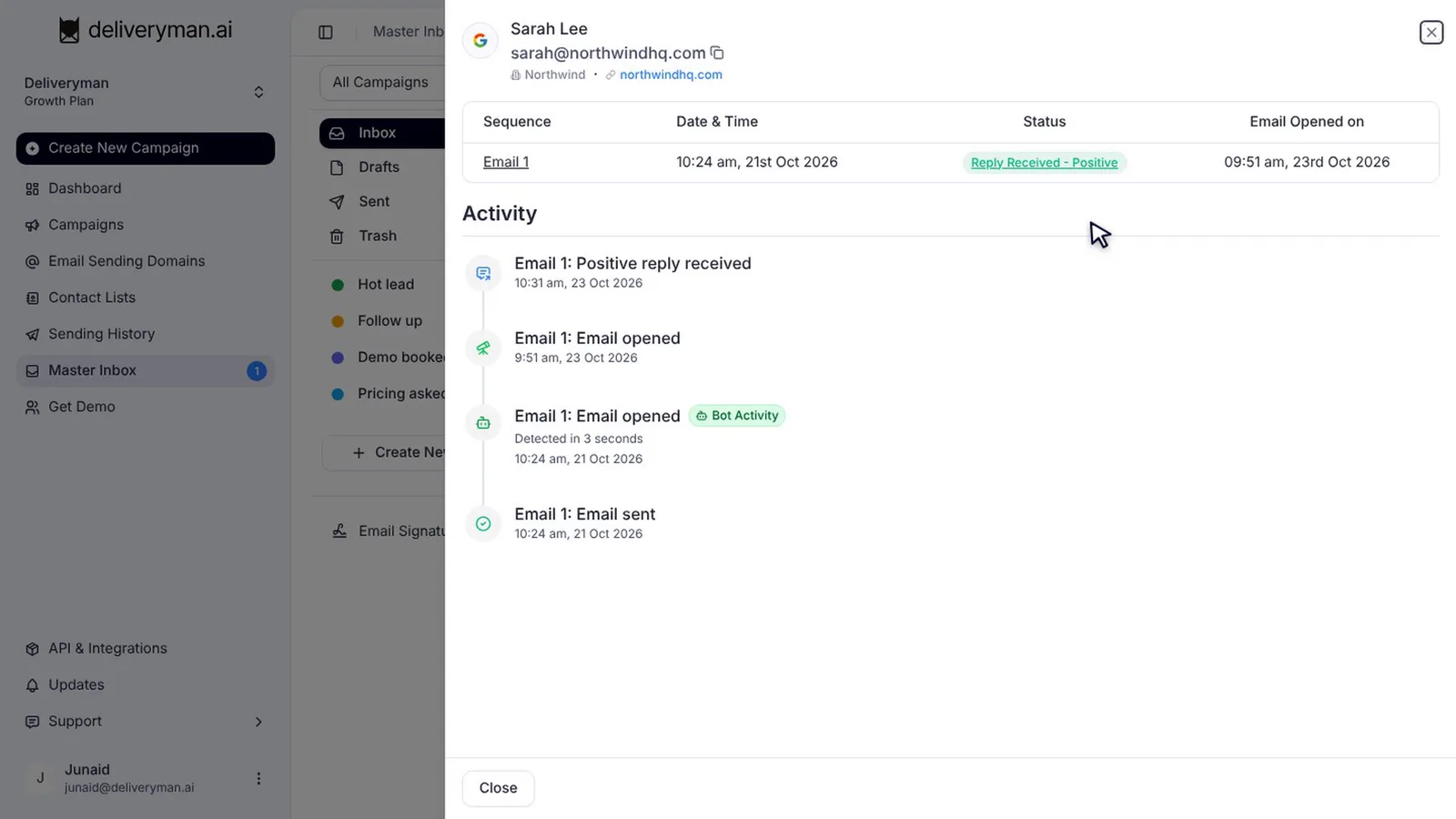
Click View Activity to see this lead’s history in the campaign: when your email was sent, when it was opened and when they replied. Bot opens are marked separately, so you can tell a real person reading your email from a security scanner.
Want to know which leads are most engaged before they even reply? Read about High Intent leads.
Reply to leads from the master inbox
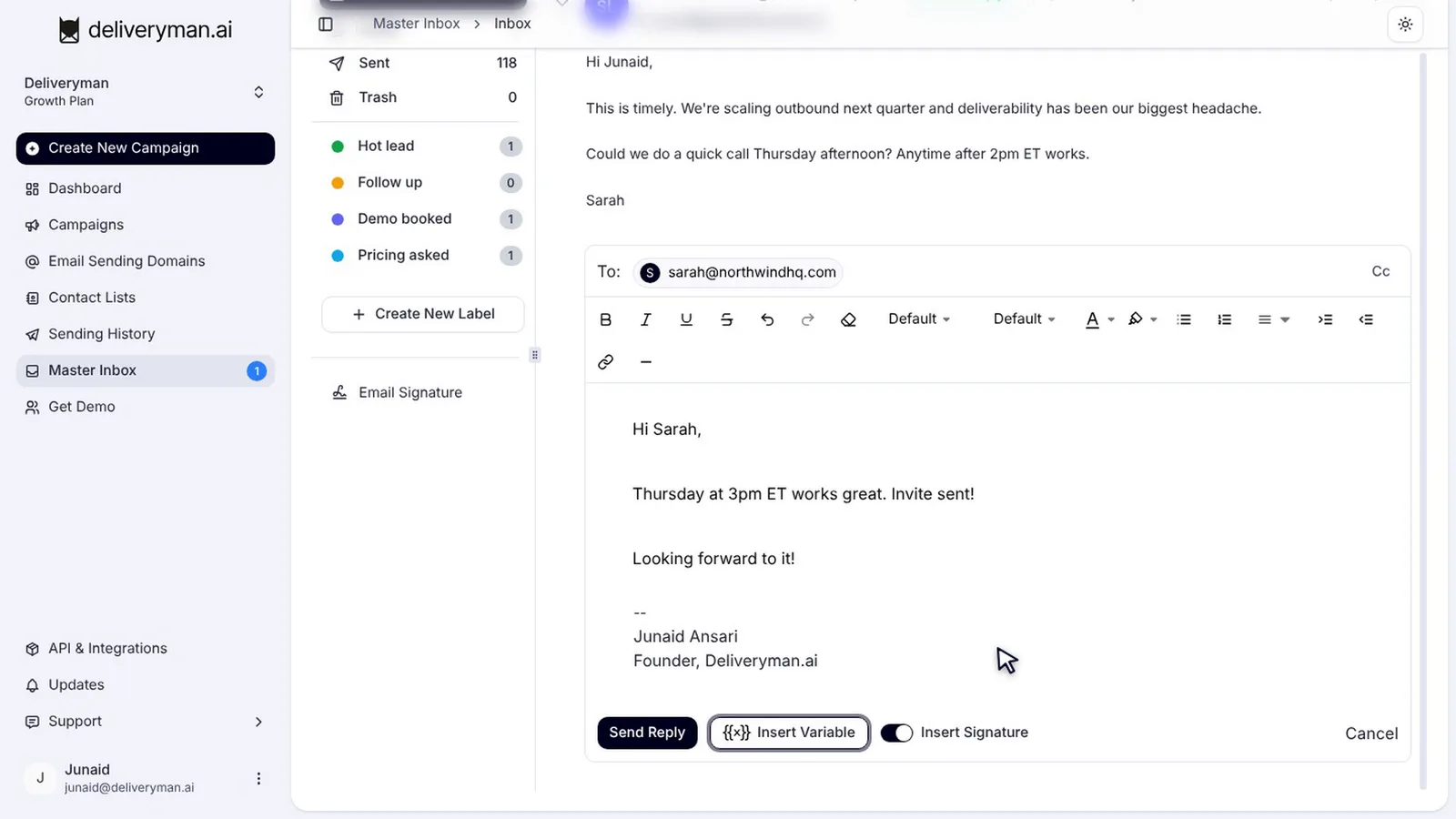
Ready to answer? Click Reply. Your reply goes out from the same mailbox that emailed the lead, in the same thread, so the conversation stays consistent for the lead.
Write your message, and use Insert Variable if you want to personalise it. Your signature is added automatically. Click Send Reply, and it shows up right in the conversation.
Forward a conversation to a teammate
Need a teammate to take over? Click Forward, add their email address and send the whole thread their way.
Tips for managing replies in your cold email master inbox
- Answer positive replies fast. Interest fades quickly, so reply the same day whenever you can.
- Fix wrong sentiments. Correcting a label keeps your tabs and campaign numbers accurate.
- Honour negative replies. If someone asks not to be contacted, don’t email them again. It’s the right thing to do, and laws like CAN-SPAM require it.
- Use neutral replies. A referral to a colleague or a “try me next quarter” is a warm lead. Label it so it doesn’t get lost.
- Measure by replies, not opens. Replies are the clearest sign a campaign is working. See our guide to cold email campaign analytics.
Frequently Asked Questions
Does the cold email master inbox show replies from every mailbox?
Yes. Replies from every campaign and every sending mailbox appear in one list in the Master Inbox. Use the campaign filter to narrow it down.
How does the master inbox sort replies?
Deliveryman sorts each reply into Positive, Neutral or Negative. You can correct any reply’s sentiment from the conversation view.
Which mailbox sends my reply?
Your reply goes out from the same mailbox that emailed the lead, in the same thread.
Can I organise replies?
Yes. Create your own labels with a name and colour, add them to any reply, and click a label to see every conversation tagged with it.
Next steps
A cold email master inbox shows you the conversations. Replies are only half of the picture, though. Learn how to read your opens, clicks, bounces and High Intent leads in our guide to cold email campaign analytics, or see pricing to get started.